
ITILITE Expense offers a powerful way for US-based clients to streamline their reimbursement process by enabling direct bank-to-bank transfers through ACH. This guide will walk you through setting up ACH payments, ensuring your finance team can process approved expense reports with ease and efficiency.
Table of Contents
- Prerequisites
- Understanding ACH Payments
- Step-by-Step Guide to Setting Up ACH
- Processing Payments via ACH
- Pro-Tips & Guardrails
- Verification & FAQs
Prerequisites
To proceed, you need:
- Access to ITILITE as a Finance Admin.
- Your organization must be a USD-based client.
Understanding ACH Payments
ACH, or Automated Clearing House, is a secure financial network in the US that facilitates electronic bank-to-bank transfers. With ITILITE's ACH integration, your organization can process employee expense reimbursements directly within the ITILITE Expense platform, eliminating the need for manual payout handling.
This integration brings significant benefits: Finance Admins can seamlessly process reimbursements for approved expense reports, and employees receive their funds directly into their bank accounts. Once a payout is completed via ACH, the expense report status automatically updates to 'Paid', and a Transaction ID is recorded for easy tracking and reconciliation with your accounting software.
Step-by-Step Guide to Setting Up ACH
Enabling ACH payments involves a few key steps to ensure your business and bank accounts are securely verified.
Step 1: Complete Business Verification
- From your ITILITE Dashboard, navigate to the Organization section in the sidebar, then select Settings, and finally click on the ACH tab. This is where you'll initiate the business verification process.
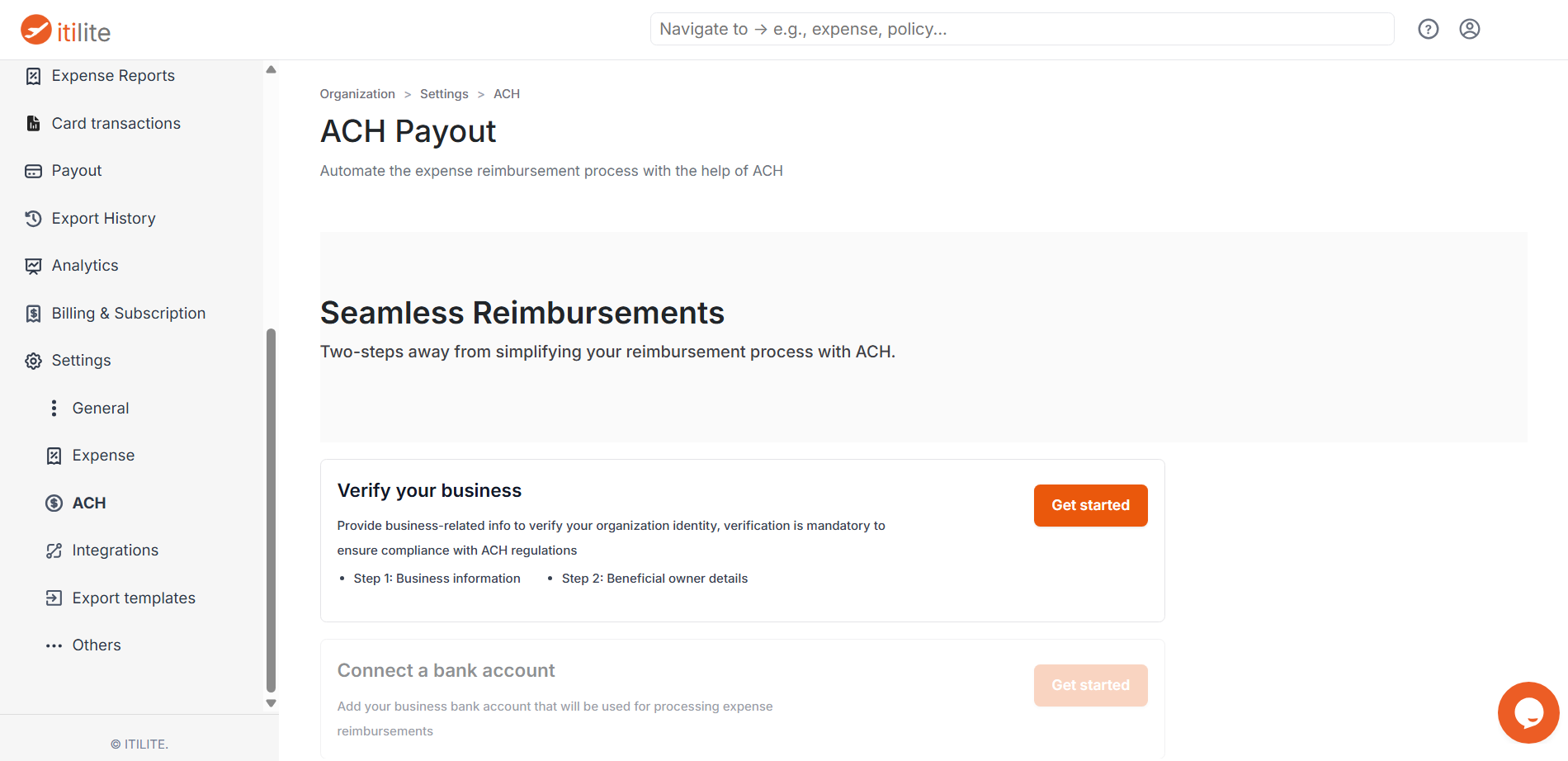
- Click the Start Verification button under the 'Verify your business' section to begin. You will be prompted to provide essential business details to register your organization.
The business verification process is a two-step flow where you'll provide:
- Business details: This includes your business type (e.g., Sole Proprietorship, LLC, Corporation, Partnership), registered business name, preferred business name, Employer Identification Number (EIN), and full business address (Address line 1, Address line 2, Postal code, City, State).
- Controller details: Information about any natural individual who holds significant responsibilities to control, manage, or direct your company (e.g., CEO, CFO). This includes their Name and Address.
- Beneficial Owner details: Information about any natural person who, directly or indirectly, owns 25% or more of the equity interests of the company.
ITILITE prioritizes your data security. All information provided during business verification is securely passed to Dwolla, ITILITE’s trusted third-party verification provider, and is not stored by ITILITE for its own use.
- Select the appropriate Legal Business Type for your organization from the dropdown menu.
- Enter your registered business name in the Business Name field and your preferred business name in the Preferred Business Name field. Then, select your business classification from the dropdown.
- Provide your Employer Identification Number (EIN) in the designated field.
- Enter your business address, including Address line 1 and Address line 2 (if applicable).
- Complete the address details by entering the City and selecting the appropriate State from the dropdown menu, followed by your Postal Code.
- Finally, enter your business Phone Number and Email Address to complete the business details section.
Step 2: Connect and Verify Bank Accounts
Once your business verification is complete, you'll need to connect and verify the bank accounts involved in the ACH process.
- For the Organization (Funding Source): As an Admin, you will connect your company's bank account from which expense payouts will be made. Look for the Add Bank Account button on the ACH settings page, which becomes active after business verification.
- For Employees: Each employee will connect their personal bank account where reimbursements will be deposited. They can do this by navigating to Individual → Cards & Bank → Bank page within their ITILITE profile.
Bank Verification Flow: For security, all bank accounts must be verified before initiating ACH payments. ITILITE supports two verification methods:
- Instant Verification: Users enter their Routing Number, Account Number, Account Type, and Account Name. If the system recognizes the bank, users can verify by entering their online banking credentials (User ID & Password/PIN). You have a maximum of 2 attempts for instant verification.
- Micro-Deposit Verification: If instant verification fails after the allowed attempts, the status changes to 'Verification Pending', and the process moves to micro-deposit verification. Two small deposits (less than $0.10 USD) are made to the bank account, which may take 1-2 business days to appear. Once these amounts reflect in the bank statement, the user must return to ITILITE and enter the exact two amounts to verify the account.
Processing Payments via ACH
Once your organization's business verification is complete and both the company's funding source and employee bank accounts are verified, you're ready to process payments.
- Navigate to Organization → Payout → Payments Queue. Here, you'll see a list of approved expense reports that are eligible for ACH payments.
- For each eligible report, you'll find an option to Process Payment directly through ACH. Simply select the reports you wish to pay and initiate the transfer.
- Upon successful completion of the ACH payout, the expense report status will automatically update to 'Paid' within ITILITE, and the Transaction ID will be recorded for your records and easy reconciliation.
Pro-Tips & Guardrails
Verification & FAQs
After successfully completing business and bank account verifications, you will see status updates on the ACH tab indicating 'Verified'. When an ACH payment is processed, the expense report status in the Payments Queue will change to 'Paid', and a confirmation message will appear, along with the recorded Transaction ID.
A: ACH (Automated Clearing House) is a US financial network for secure bank-to-bank transfers. With ITILITE's integration, your organization can process employee expense reimbursements directly from the platform, automating payouts and updating report statuses to 'Paid' with a Transaction ID for easy reconciliation.
Q: Who can use ACH payments in ITILITE?
A: ACH payments are designed for Finance Admins of USD-based client organizations. They enable these admins to process approved expense report payouts directly through the ITILITE Expense platform, benefiting both the finance team and employees receiving reimbursements.
Q: What is the bank account verification process?
A: Bank accounts can be verified instantly by providing account details and online banking credentials (with a maximum of two attempts). If instant verification fails, a micro-deposit process is initiated where two small deposits are made to the account, and the user must enter these exact amounts in ITILITE to complete verification.
Q: Can I still process expense payouts manually if ACH is enabled?
A: Yes, absolutely! Reports eligible for ACH transfers can still be processed manually. Enabling ACH provides an additional, integrated option for payouts but does not remove your ability to manage reimbursements outside of ITILITE and update their status manually.
Q: What happens after an expense report is paid via ACH?
A: Once a payout is successfully completed using ACH, the expense report's status in ITILITE automatically updates to 'Paid'. A unique Transaction ID is also recorded, providing a clear audit trail and simplifying the process of migrating payout details to your accounting platform.
Was this article helpful?
That’s Great!
Thank you for your feedback
Sorry! We couldn't be helpful
Thank you for your feedback
Feedback sent
We appreciate your effort and will try to fix the article