
Efficiently managing your team's access and permissions is crucial for a streamlined expense process. ITILITE empowers you to easily create new users and define their roles, ensuring everyone has the right level of access to manage their expenses and approvals.
Table of Contents
Creating Users
You can add users to ITILITE either individually or by uploading them in bulk. Both methods allow you to populate your organization's user base efficiently.
- From your ITILITE dashboard, navigate to Settings and then select General. Within the General settings, click on Users to access the user management page.
Option 1: Add Users Individually
This method is ideal for adding a few new users or making quick updates to existing profiles.
- On the Users page, click the Add user button to open the user creation form. This will allow you to enter details for a single new employee.
- Enter the user's full name in the First and middle name and Last name fields. Then, provide their official Email address, which will serve as their login ID for ITILITE.
- Select the appropriate Employee Level from the dropdown menu. This helps categorize users within your organizational hierarchy.
- Choose the relevant Entity and Business Unit for the new user from their respective dropdown menus. These fields help align users with your company's structure for reporting and policy application.
- Select the correct Department for the user from the dropdown. This ensures they are correctly grouped for expense policies and approval workflows.
- Finally, enter the user's Designation in the provided field.
- Click the Create user button to save the new user profile. You will then be prompted to select an email invitation preference to notify the user about their new ITILITE account.
Option 2: Bulk Upload Users
For adding many users at once, the bulk upload feature is a powerful time-saver.
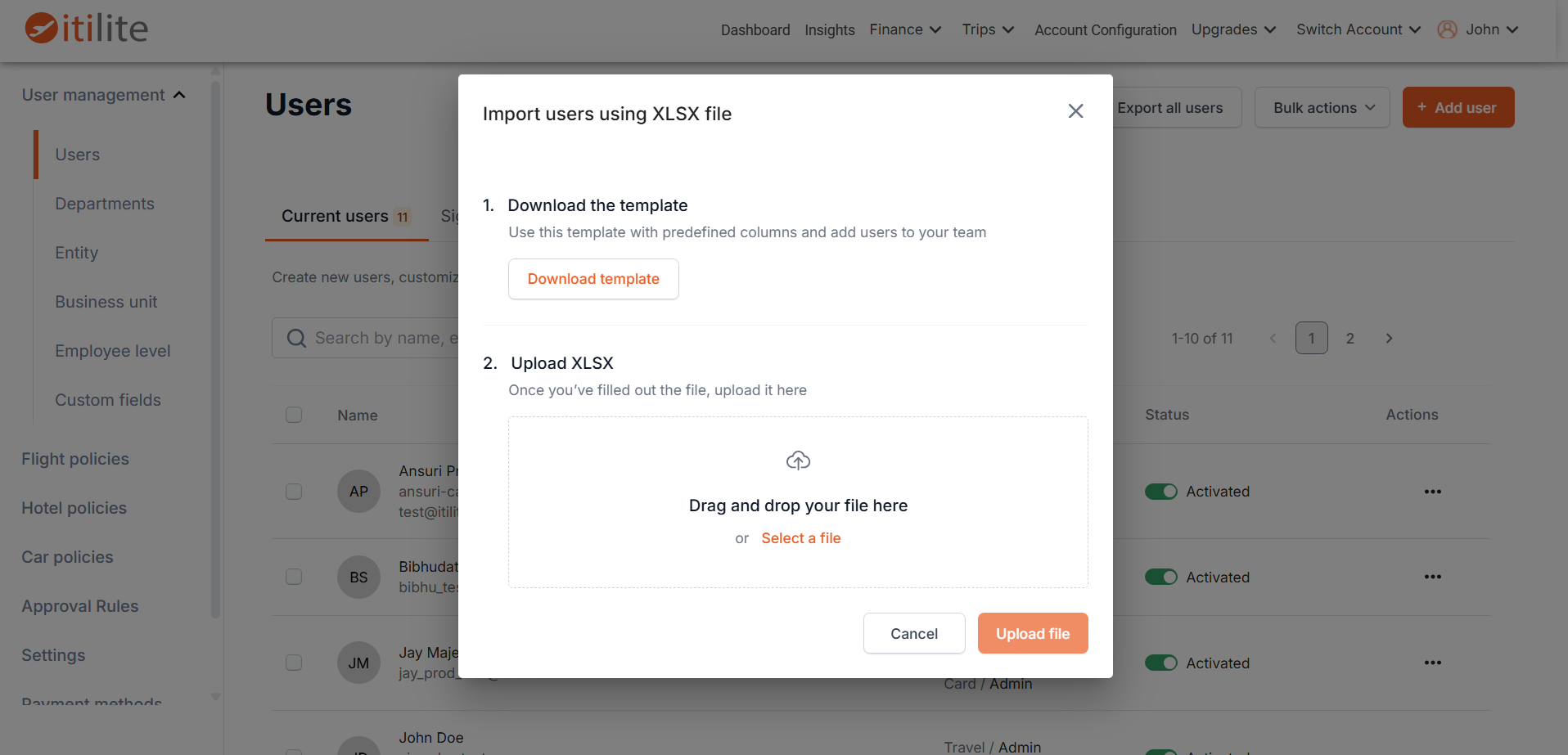
- On the Users page, locate and click the Bulk Actions button.
- Click Download Template to get the pre-formatted Excel file. This template includes all the necessary fields for user details, such as Email, Name, Department, Entity, Employee Level, and Business Unit.
- Fill in the employee details for all users you wish to add. When you upload this file, any new Department, Entity, Business Unit, or Employee Level values will automatically become part of your organization's structure within ITILITE. Ensure each new department has at least one user assigned to it.
- Once your template is complete, click Upload New and select your saved file. ITILITE will process the file, and you'll receive a confirmation message upon successful upload. The new users and their mapped organizational details will then be added to the system.
Assigning Roles
After creating users, defining their roles is essential to control their access and capabilities within ITILITE. Roles determine who can view, approve, and process expenses, as well as access administrative settings.
- From the admin navigation, go to Settings and then click on Roles. This section allows you to manage access rights for various modules of the ITILITE platform.
- By default, all newly created users have basic Employee access, allowing them to file and view their own expenses. To modify access, click the Edit icon on the Roles page.
- You can assign specific roles for different modules, such as Expense. Key roles for Expense include:
- Traveler / Submitter: Can file expenses and view their own data.
- Expense Admin: Can configure Expense settings, categories, policies, approvals, payouts, and analytics at the company level.
- Expense Finance Admin: Has finance-focused access, including payouts, exports, analytics, and financial reports for Expense.
- For each role or module, use the dropdown options to specify which users belong to that role. You can typically add individual members by searching for their name or email.
- Once you've made your selections, click Save to apply the changes. Role assignments take effect immediately, updating the user's access and available features.
For comprehensive details on managing roles across ITILITE, including Travel and Expense, please refer to our dedicated article: Manage User Roles in ITILITE.
Pro-Tips & Guardrails
Verification & FAQs
After successfully creating users or assigning roles, you'll typically see a confirmation message, such as "Users uploaded successfully" or "User roles updated." The Users table will refresh immediately to display the latest users and their assigned roles, reflecting all your changes.
A: When you bulk upload users, any new Department, Entity, Business Unit, or Employee Level values present in your file will be automatically added to your organization's structure within ITILITE. This helps you quickly build out your company's organizational hierarchy as you onboard new team members.
Q: What are the main roles relevant for Expense management in ITILITE?
A: For Expense management, the key roles are Traveler/Submitter (basic user), Expense Admin (manages expense configurations and policies), and Expense Finance Admin (handles payouts, financial reports, and exports). These roles provide distinct levels of access and control over expense-related features.
Q: Do changes to user roles take effect immediately?
A: Yes, any changes you make to user roles, such as promoting a user to an Expense Admin or Expense Finance Admin, take effect immediately after you save the configuration. The user's access to pages, menu visibility, and available actions will reflect their new role upon their next interaction with the platform.
Q: Can a user have roles across both Travel and Expense modules?
A: Absolutely! ITILITE uses a shared user and role management system across its Travel and Expense modules. This means a single user can hold roles in both products simultaneously, for example, being a Travel Admin and an Expense Admin, streamlining management for your team.
Q: Who has the ability to create and manage users and roles in ITILITE?
A: Only users with admin-level roles, such as the Primary Admin, Travel Admin, Expense Admin, or an ITILITE Admin, have the necessary permissions to access the User Management and Roles sections. This ensures that user and role configurations are handled by authorized personnel.
Was this article helpful?
That’s Great!
Thank you for your feedback
Sorry! We couldn't be helpful
Thank you for your feedback
Feedback sent
We appreciate your effort and will try to fix the article