
Understanding who approves your expense reports is crucial for smooth reimbursements, and ITILITE makes it easy to find this information right where you need it.
Table of Contents
Step-by-Step Guide
Follow these steps to locate your approver or manager information:
- First, log into your ITILITE account. From your main dashboard, navigate to the Expenses section to access your expense reports.
- From your list of expense reports, click on any submitted report to view its detailed information. This is the most reliable place to find context-specific approver details.
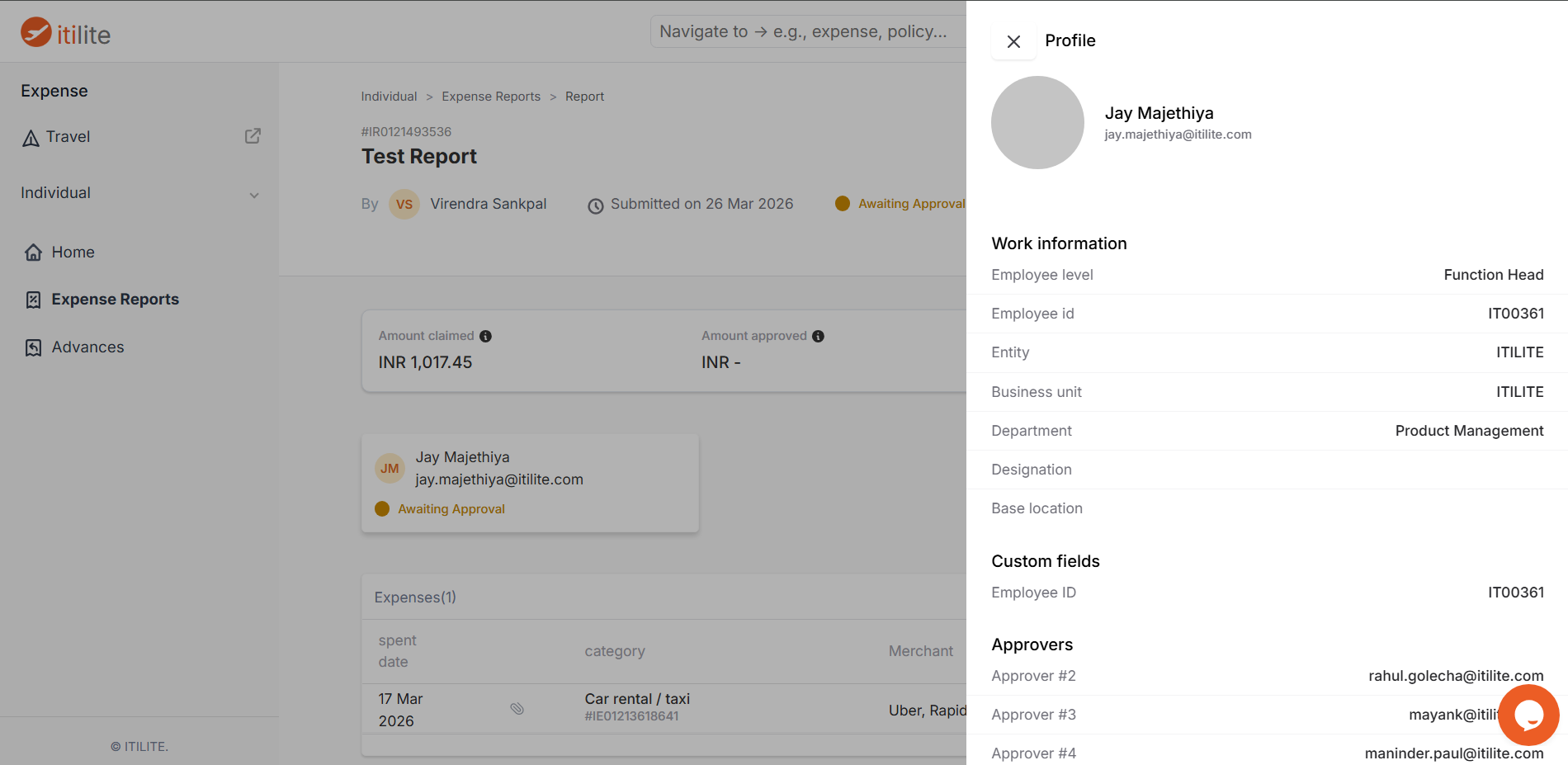
- Once inside the report details, look for the dedicated approval section. Here, you'll clearly see the name of the current approver assigned to this specific expense report and its current approval status. For more comprehensive details, you can also click on the approver's name within the report details.
Verification & FAQs
Once you've followed the steps above, you will see the name of your assigned approver clearly displayed within the expense report details or in the profile popup accessed from the report. This confirms that the system has successfully identified who is responsible for approving your submission.
A: Approver and manager information is considered master data, configured by your company's administrators in your user profile. This ensures a consistent and controlled approval workflow across the organization, preventing unauthorized changes.
Q: What if I don't see approver information on my general profile page?
A: While some profile pages may show this, ITILITE is designed to most reliably display approver details within the context of a submitted expense report. Always check the report details or the profile popup accessed from the report first for the most accurate information.
Q: Where does ITILITE get my approver information from?
A: Your approver is mapped to your individual user profile by your company's admin team, typically in the Settings > General > Users section. This mapping is then used by ITILITE's approval flow engine to route your expense reports correctly.
Q: What should I do if my listed approver is incorrect?
A: If you believe your approver information is incorrect, please contact your organization's Travel/Expense Admin or Finance Admin. They have the necessary permissions to verify and update your approver mapping in ITILITE.
Q: Does this method apply to all types of expense reports?
A: Yes, the process of checking approver information within the report details or via the profile popup from the report applies to any submitted expense report within ITILITE, regardless of its type or category.
Was this article helpful?
That’s Great!
Thank you for your feedback
Sorry! We couldn't be helpful
Thank you for your feedback
Feedback sent
We appreciate your effort and will try to fix the article