
To gain a comprehensive overview of all your card transactions and their reconciliation statuses, you can easily download a detailed report from ITILITE.
Table of Contents
- Understanding and Downloading Your Reconciliation Report
- Step-by-Step Guide: Downloading Your Reconciliation Report
- Pro-Tips & Guardrails
- Verification & FAQs
Understanding and Downloading Your Reconciliation Report
The ITILITE Card Reconciliation Report provides a detailed, audit-ready export of all your company's card transactions, complete with their reconciliation statuses. This report is a powerful tool for finance teams to track spending and ensure every transaction is accounted for.
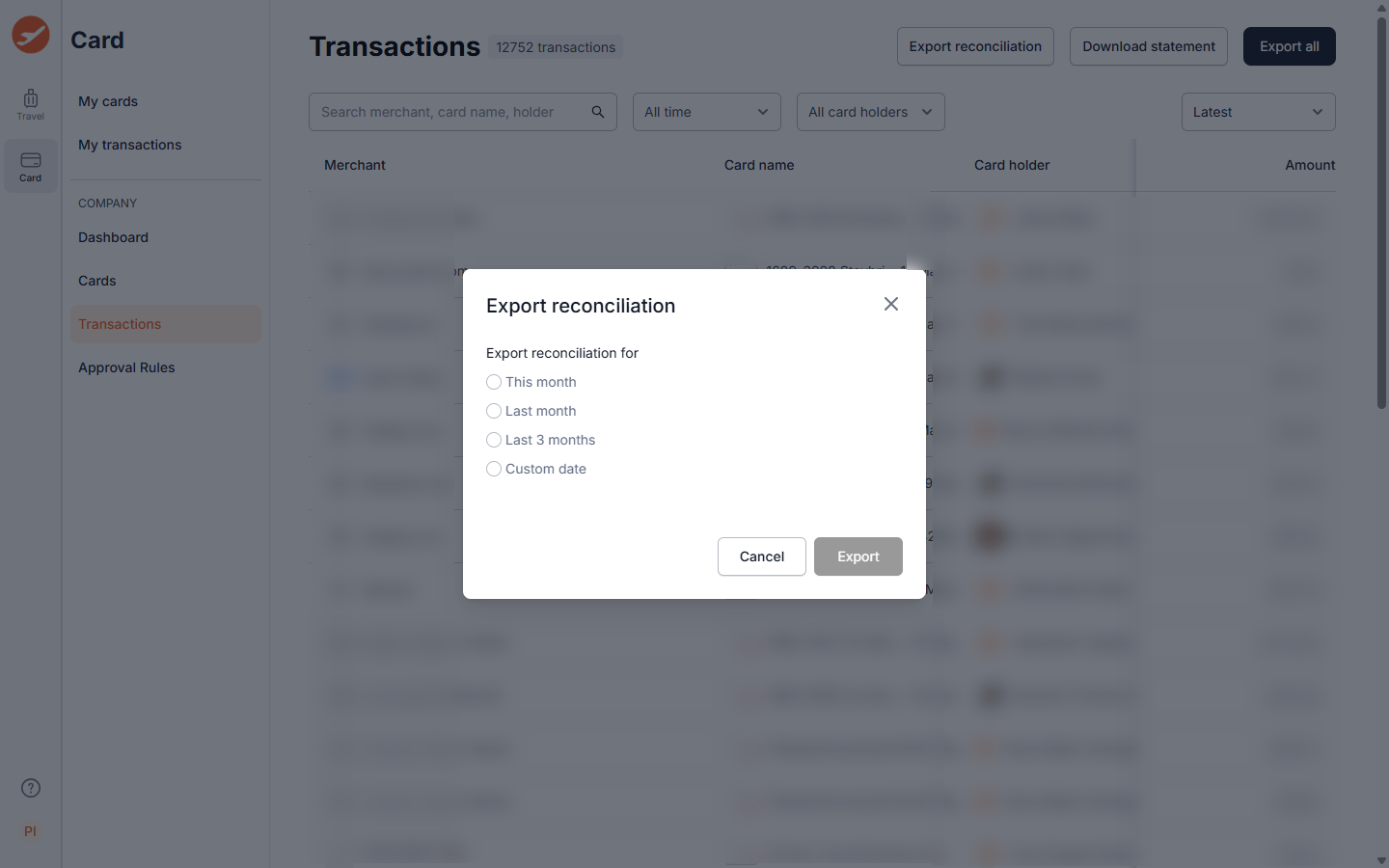
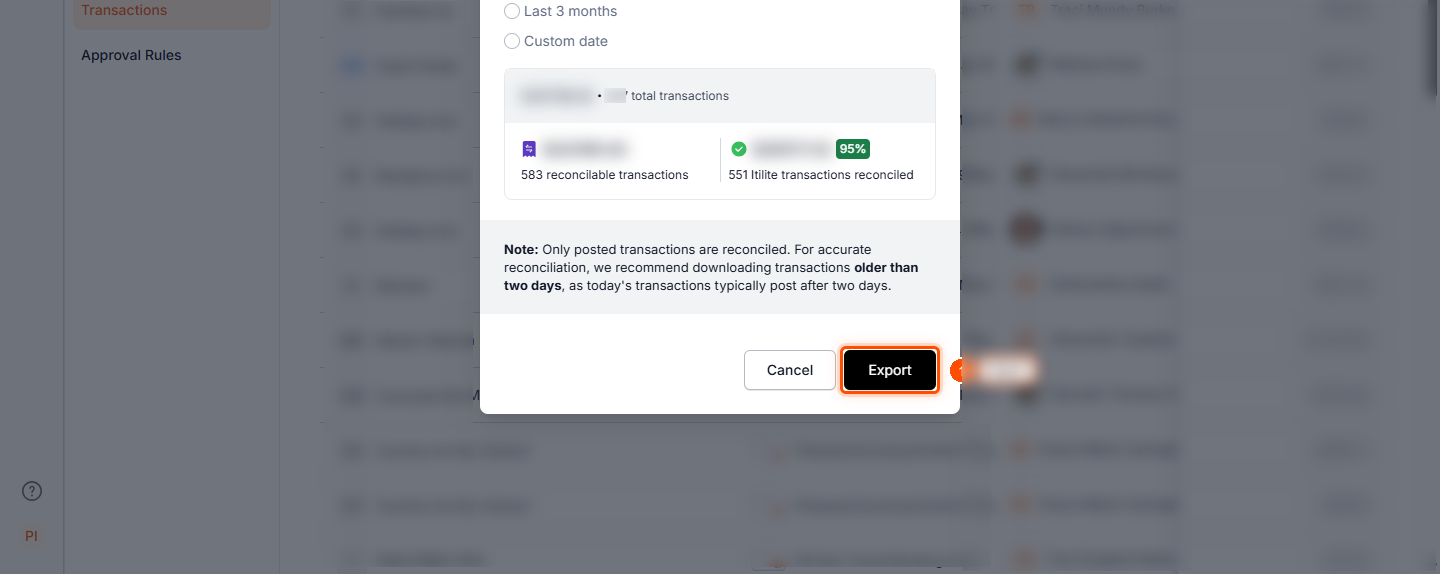
When you're ready to download, you'll typically be prompted to select a specific period for your report. You can choose from predefined options like This month, Last month, or Last 3 months, or define a Custom date range to fit your specific needs. After selecting your desired timeframe, a quick summary of the export reconciliation is displayed, giving you an overview before the download.
To gain a comprehensive overview of all your card transactions and their reconciliation statuses, you can easily download a detailed report from ITILITE.
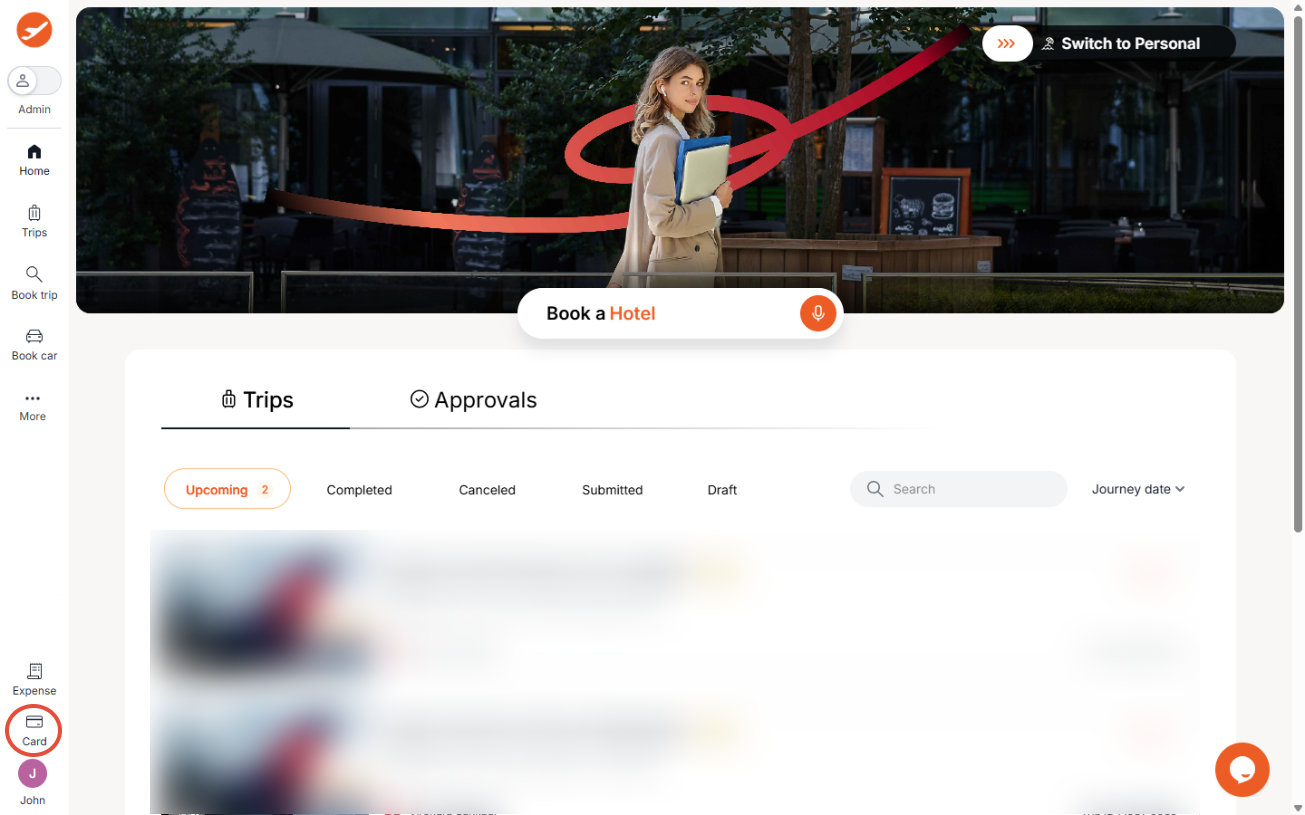
- From your ITILITE Dashboard, locate and click on the Card section in the sidebar menu. This will take you to your card management area, where you can oversee all card-related activities.
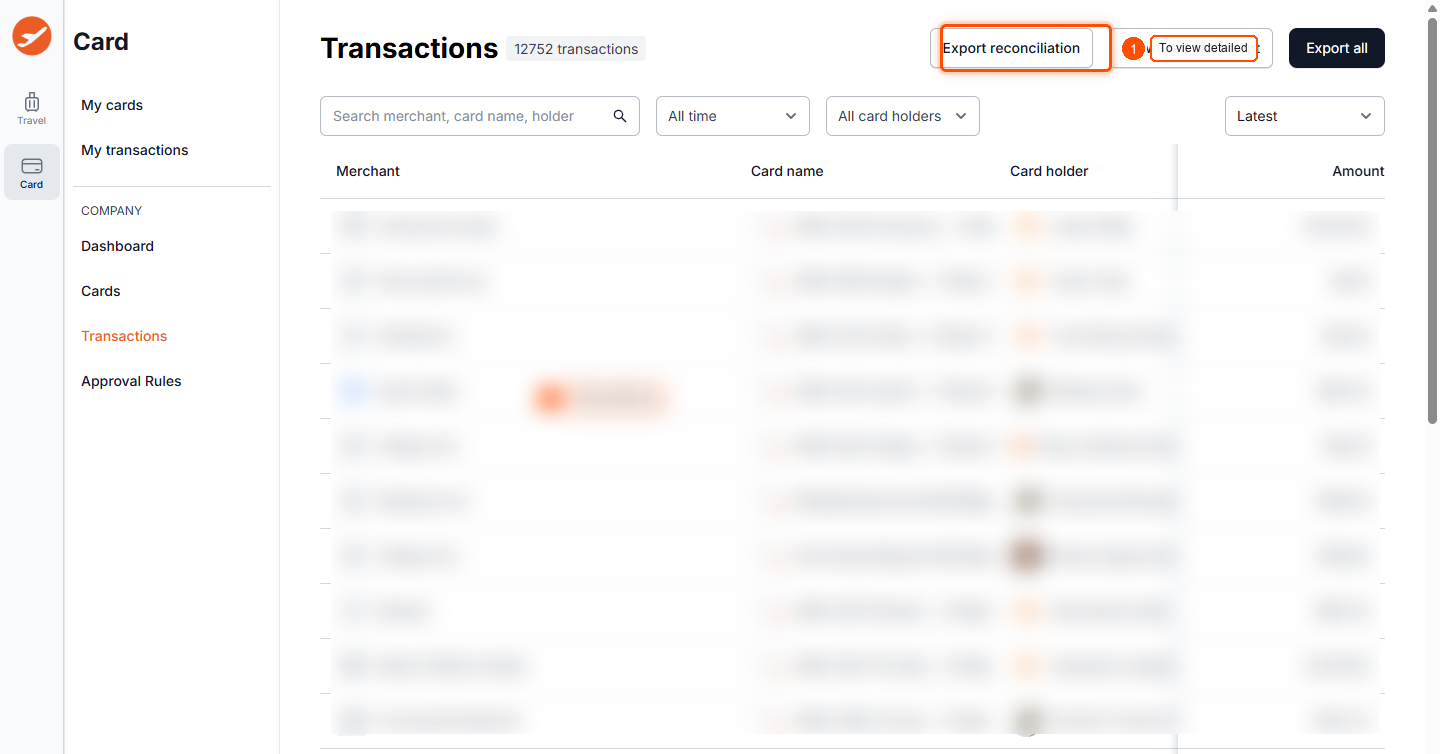
- Within the Card section, navigate to the Transactions tab. Here, you'll find a list of all your company's card transactions, providing a clear view of your spending.
- To access the reconciliation report, click on the Export reconciliation button. This action prepares a detailed report that includes the reconciliation status for each transaction.
- A prompt will appear asking you to select the period for your report. Choose your desired timeframe to ensure the report covers the transactions you need to review.
- Finally, click the Export button to download your comprehensive reconciliation report. This report will provide all the necessary details to understand the status of your card transactions.
What the Reconciliation Report Includes:
Every transaction in your downloaded report is meticulously categorized and labeled with a clear reconciliation status. This comprehensive view helps you understand the journey of each expense.
- Categorization: Each card transaction is categorized, providing clarity on the nature of the spend.
- Reconciliation Status: Transactions are clearly labeled with one of three statuses:
- Auto-Reconciled: These transactions have been automatically matched to a booking within the ITILITE platform.
- Needs Review: This status indicates eligible spend that requires verification or further action from your finance team.
- Not Eligible: These are transactions where the settlement or booking occurred outside the ITILITE platform, and thus are not eligible for automated booking-to-charge reconciliation.
- References: Where applicable, the report includes relevant booking or merchant references, linking transactions directly to their source.
- Non-Travel Transactions: The report also includes non-travel card transactions (such as software, meals, or subscriptions), which are categorized but not eligible for booking-to-charge reconciliation.
- Custom Fields: If configured, user-level custom field values for the corresponding traveler will automatically appear in the report, providing even richer data.
You can also schedule this report for recurring delivery, ensuring it's automatically sent to specified email recipients at defined frequencies (daily on weekdays, weekly, or monthly) without requiring manual intervention.
Pro-Tips & Guardrails
Verification & FAQs
Once you've downloaded your reconciliation report, you'll receive a clear, organized Excel or CSV file containing all your card transactions. Each transaction will be accompanied by its specific reconciliation status (Reconciled, Unreconciled, or Non-reconcilable), along with relevant booking or merchant references, giving you a complete picture of your spending.
Q: Who can download the full ITILITE Card Reconciliation Report?
A: The full reconciliation report is available to users with Travel Admin or Finance Admin roles. Individual cardholders with only personal-level access cannot download this comprehensive report.
Q: What are the different reconciliation statuses I might see in the report?
A: The report uses three main statuses: Auto-Reconciled (matched automatically to an ITILITE booking), Needs Review (eligible spend requiring verification), and Not Eligible (settlement or booking occurred outside the platform).
Q: Can I customize the columns or content of the reconciliation report?
A: Standard reports like the reconciliation report cannot have their columns modified or customized. However, you can apply filters and sort columns within the report editor before downloading to focus on the data most relevant to you.
Q: What date range options are available when downloading the report?
A: You can select from predefined options such as This month, Last month, or Last 3 months. For more specific needs, you can also choose a Custom date range to define your own start and end dates.
Q: Can I receive the reconciliation report automatically?
A: Yes, you can schedule the report for automatic delivery. Options include daily on weekdays, weekly (you choose the day of the week), or monthly (you choose the day of the month from the 1st to the 28th, or the last day).
Was this article helpful?
That’s Great!
Thank you for your feedback
Sorry! We couldn't be helpful
Thank you for your feedback
Feedback sent
We appreciate your effort and will try to fix the article