
ITILITE's Reports page is the single place to find, review, and export every piece of travel data generated by your company's bookings — from raw transactions to cancellations, compliance flags, and carbon impact. This guide walks you through browsing available reports, filtering and sorting the data inside one, downloading it, and setting up recurring email delivery so the right people get the right data automatically.
Pre-requisite
You need Travel Admin or Finance Admin role on your ITILITE account.
Step-by-Step Guide
1. Navigate to Reports
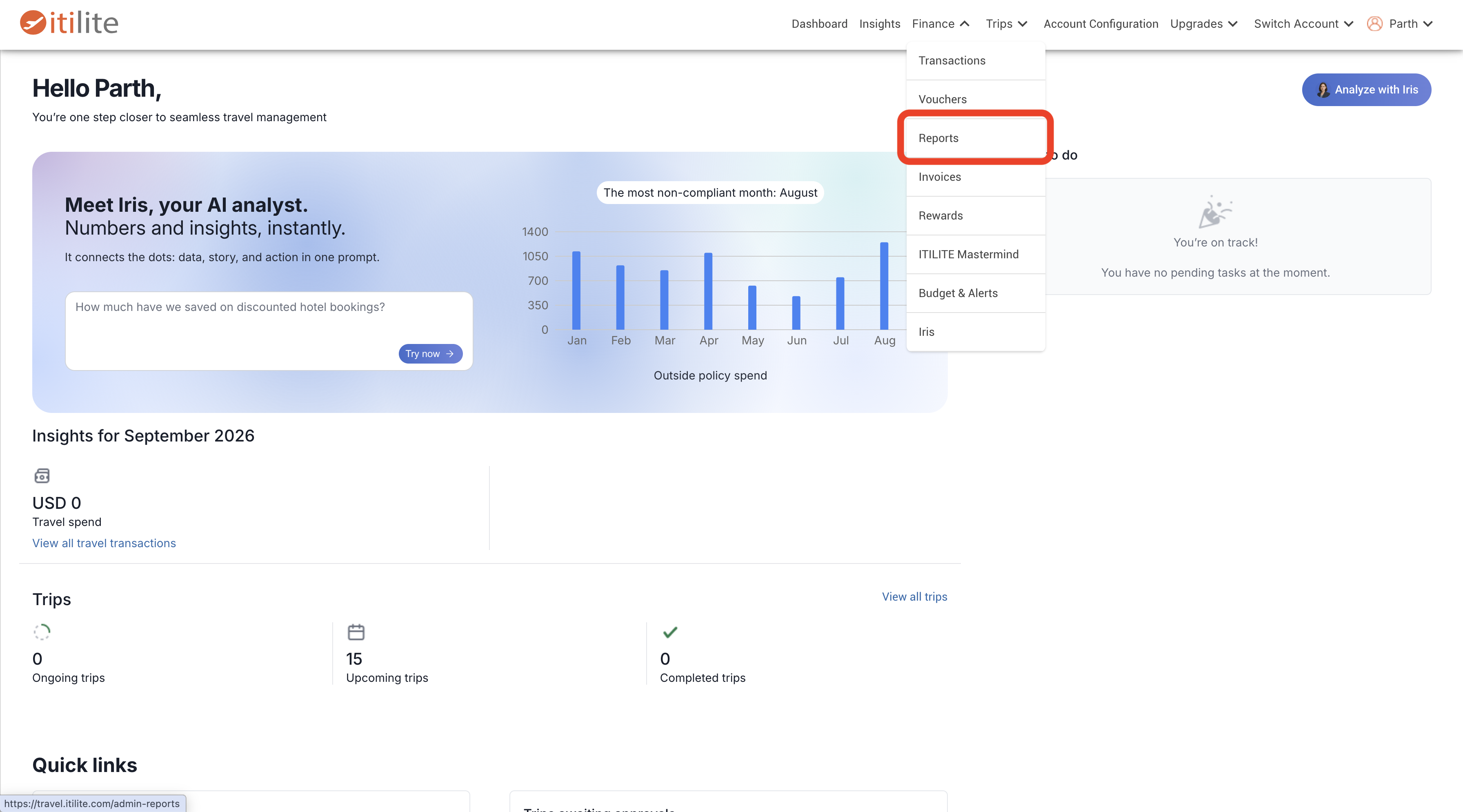
Log in to your ITILITE account. From the top navigation on your admin dashboard, open Finance, then select Reports.
2. Browse and search available reports
The Reports page shows a grid of all your company's reports. Each tile has a title, a short description of what the report covers, a Download button, and a Schedule button.
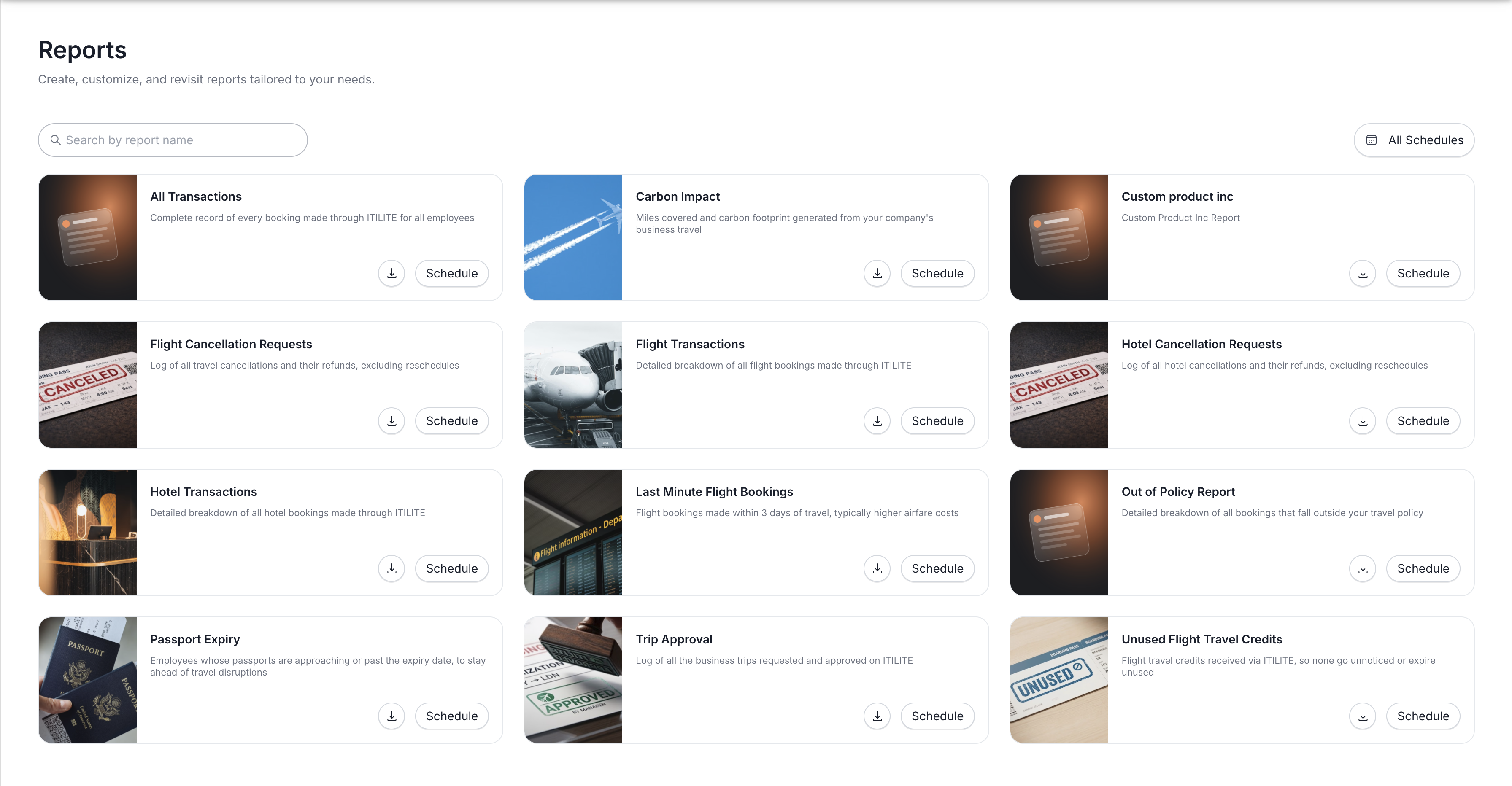
Use the Search bar to quickly find a report by name. Click on All Schedules (top right) to check out your company's active and paused schedules.
3. Download a report directly
If you just need the data once, click the download icon on any report tile to get that report for the current month, or open the report and select the required duration.
Smaller exports download immediately. Larger exports are zipped and emailed to you instead.
4. Schedule a report for recurring delivery
To have a report sent automatically on a regular basis, click Schedule on the report tile (or Schedule from inside an open report). This opens the Schedule report modal.
- Frequency — Daily, Weekly once, or Monthly once
- Day — for weekly schedules, pick a day of the week; for monthly schedules, pick a day of the month
- Email recipients — add one or more email addresses
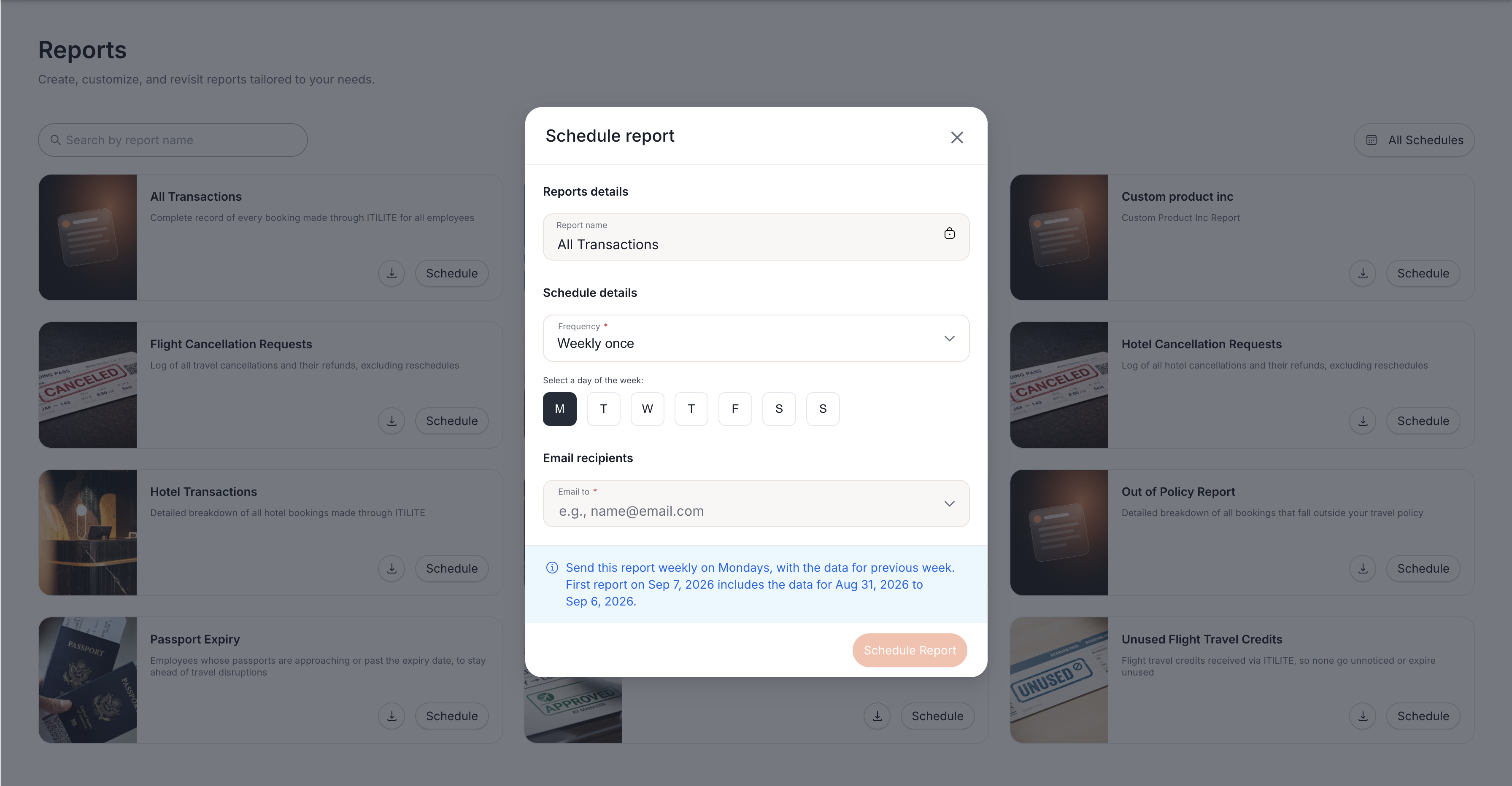
Before you confirm, the modal shows you exactly what to expect — for example: "Send this report weekly on Mondays, with the data for previous week. First report on Sep 7, 2026 includes the data for Aug 31, 2026 to Sep 6, 2026." Review this, then click Schedule Report.
5. Manage your existing schedules
Click All Schedules from the Reports page to see every schedule across all your reports, grouped by report name. Each schedule card shows:
- Frequency and status (Active/Paused)
- The next scheduled send date, the last-sent date
- Recipient email address(es)
- Controls to pause/resume, edit, or delete the schedule
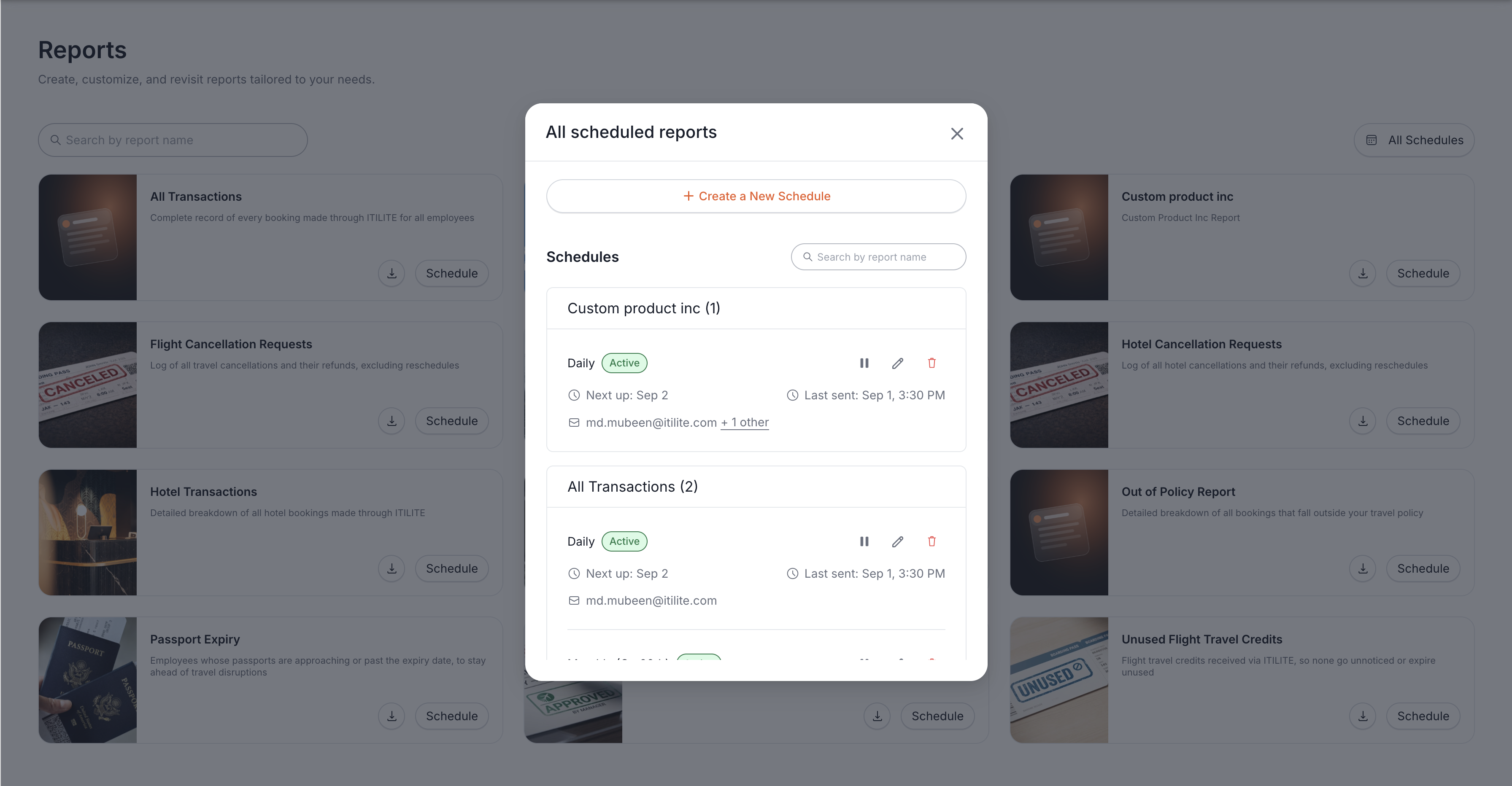
You can also create a brand-new schedule directly from this view using + Create a New Schedule.
6. Open a report to search, filter, sort, and download
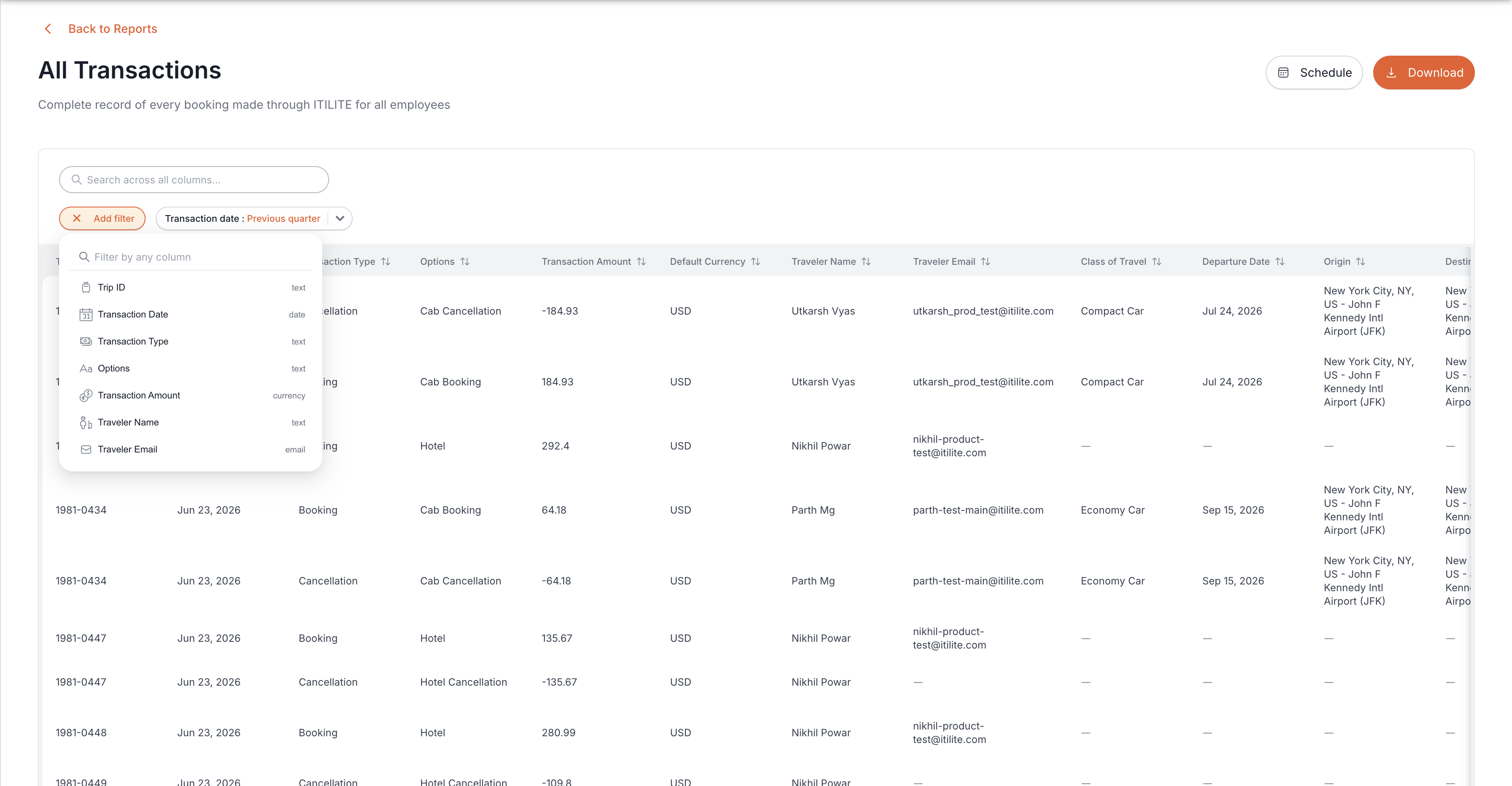
- Search across all cells using the search bar at the top
- Add a filter on any specific column — click + Add filter, choose a column, and set a condition (available conditions depend on the column's data type)
- Sort any column by clicking the sort arrows in its header
- Download the exact filtered view you're looking at
Common use cases
Filtering examples.
- Find every booking for one traveler: Open any transaction report and search across all columns for the traveler's name or email, or add a filter on Traveler Email with Contains and type their address.
- Flag high-value transactions for finance review: On All Transactions, add a filter on Transaction Amount with Greater than and set your threshold.
- Check last-minute bookings for a department: Open Last Minute Flight Bookings and filter by traveler or requestor details to narrow it down to your team.
- See who's due for passport renewal soon: Open Passport Expiry and filter by expiry date to see anyone expiring within the next few months.
Scheduling examples
- Weekly finance reconciliation: Schedule All Transactions to run weekly on the day before your finance sync, so last week's spend is already in your recipients' inbox.
- Daily policy monitoring: Schedule the Out of Policy Report daily so your travel policy owner can review out-of-policy bookings as they happen rather than at month-end.
- Monthly passport compliance check: Schedule Passport Expiry monthly to your HR or travel admin team to catch upcoming expirations before they cause travel disruptions.
- Month-end sustainability reporting: Schedule Carbon Impact monthly to whoever compiles your company's sustainability or ESG reporting.
Pro-Tips & Guardrails
Verification & FAQs
Q: What date range does my scheduled report cover?
A: It depends on the frequency you choose. Daily schedules send the previous day's data, weekly schedules send the full previous week's data, and monthly schedules send the full previous month's data. The Schedule report modal always shows you the exact range for your first scheduled send before you confirm.
Q: Will I be notified if a download is large?
A: Yes. If a report is too large to download instantly, ITILITE zips the file and emails it to you instead, with an on-screen confirmation while it's being prepared.
Q: Who can set up or manage a schedule?
A: Any Travel Admin or Finance Admin user can create, pause, edit, or delete a report schedule.
Was this article helpful?
That’s Great!
Thank you for your feedback
Sorry! We couldn't be helpful
Thank you for your feedback
Feedback sent
We appreciate your effort and will try to fix the article