
Not everyone who travels books their own trip, and not every traveler knows which flight, hotel or car they would prefer. With the ITILITE Share browser extension, you can pick a few options on ITILITE, send them to your traveler by email, and get their choices back in your inbox. There are no screenshots or long email threads, and your traveler does not need an ITILITE account. This guide walks you through installing the extension, sharing options, what your traveler sees, and completing the booking.
Prerequisites
To proceed, you need:
- An ITILITE account that lets you book travel for others.
- A desktop browser based on Chromium, such as Google Chrome, Arc or Brave. Safari and Firefox are not supported.
- The email address of each traveler you want to share options with.
Step-by-Step Guide
Part 1: Install the ITILITE Share extension
- Open the Chrome Web Store and search for ITILITE. You can also go straight to the extension: ITILITE Share on the Chrome Web Store.
- Select ITILITE Share, click Add to Chrome, and confirm if your browser asks you to.
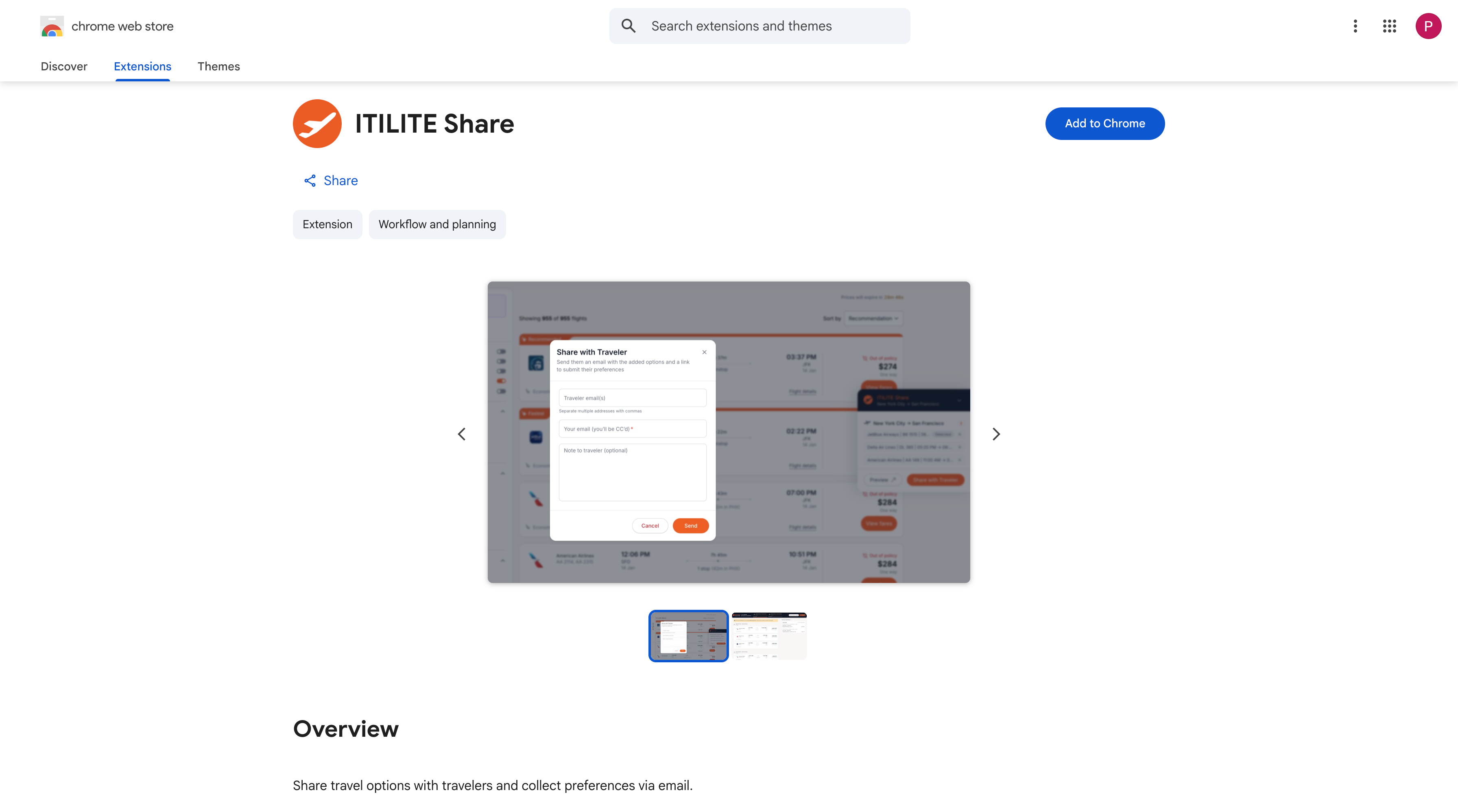
- That's it. There is nothing to set up or pin. Whenever you are on a flight, hotel or car results page on ITILITE, the ITILITE Share widget appears automatically on the right edge of the page.
Part 2: Add options to share
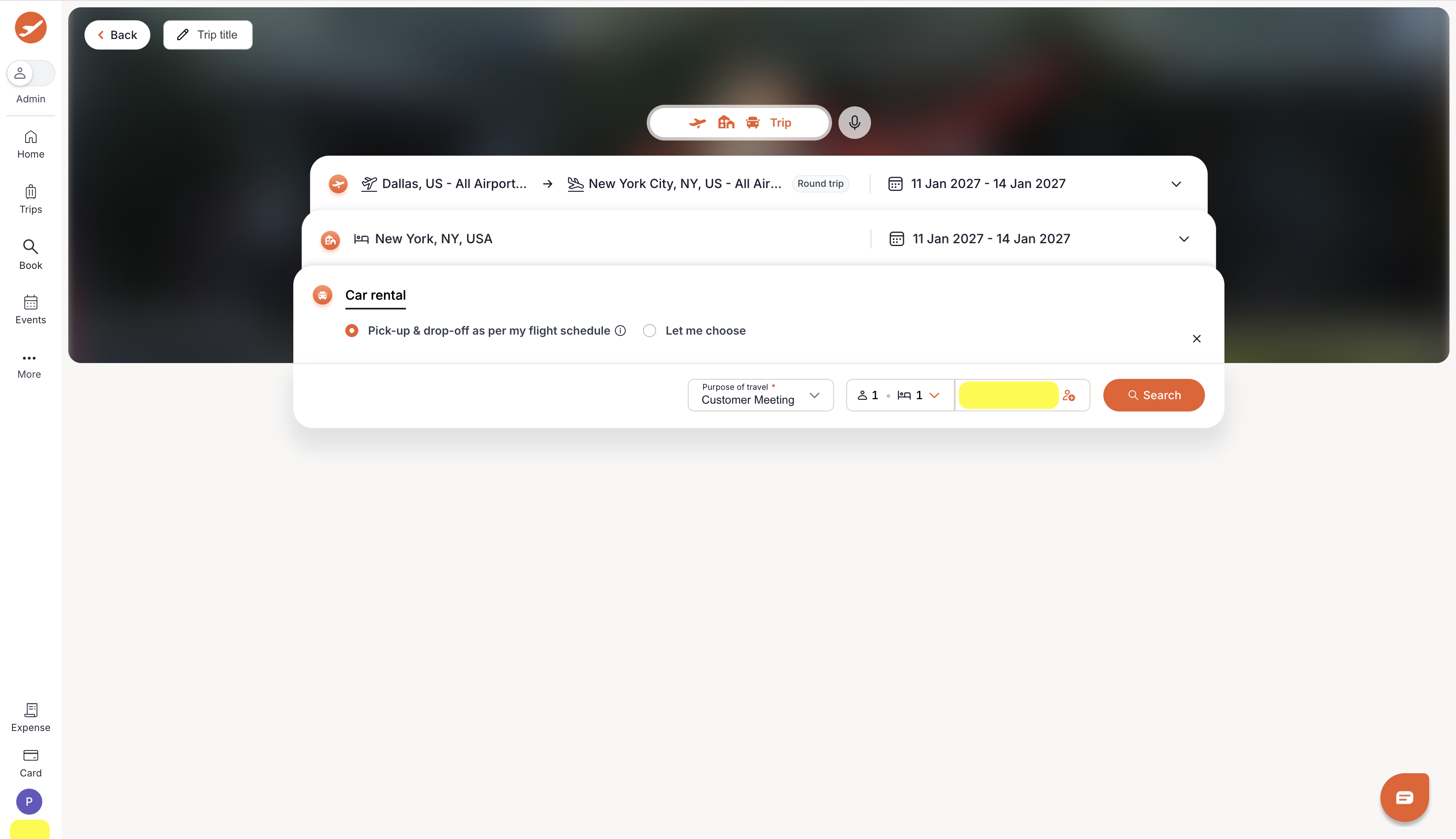
- Log in to your ITILITE account and click Book in the left menu. Enter your details for each travel mode, and click Search.
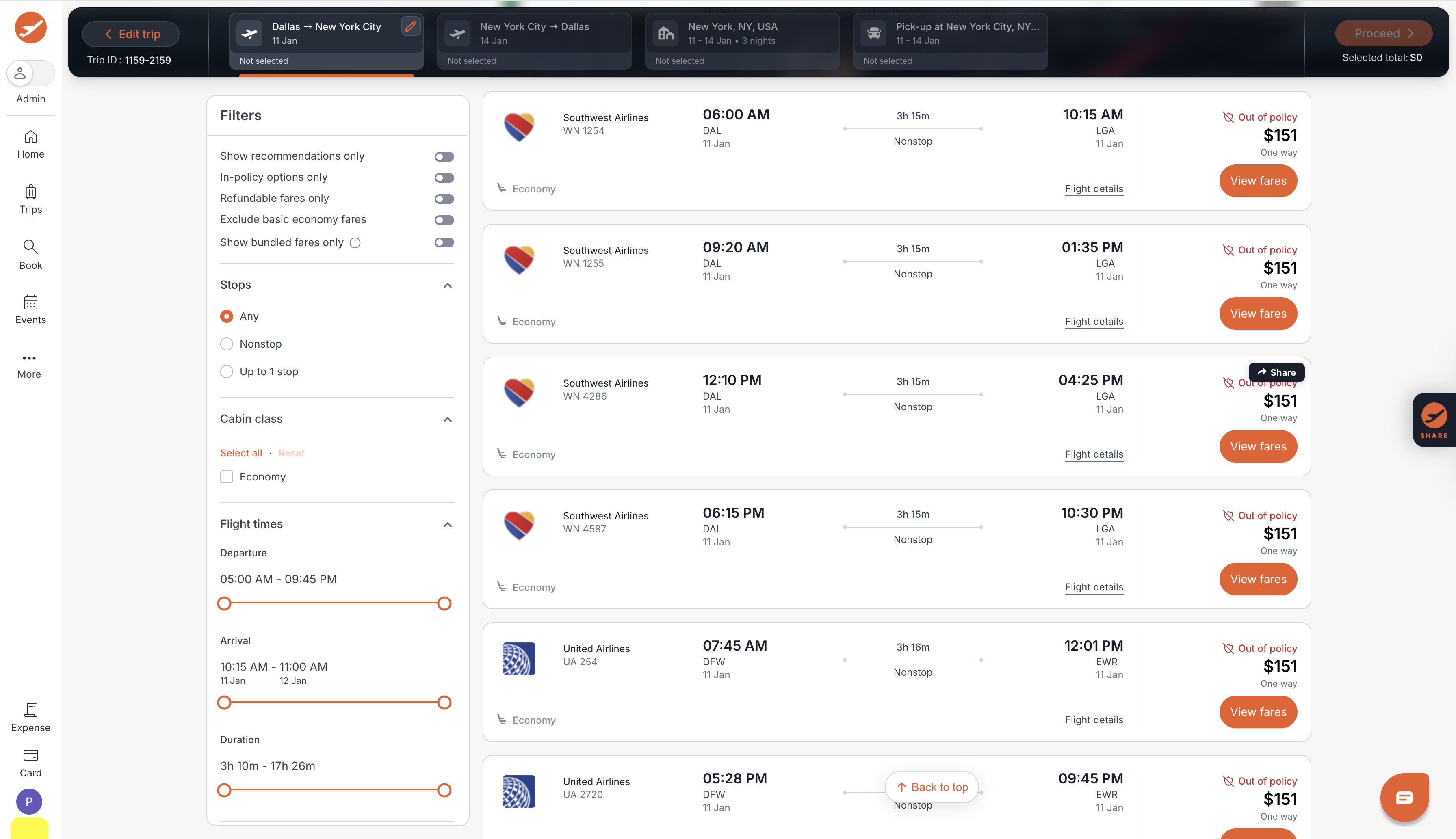
- On the results page, hover over an option you would like to share and click Share.
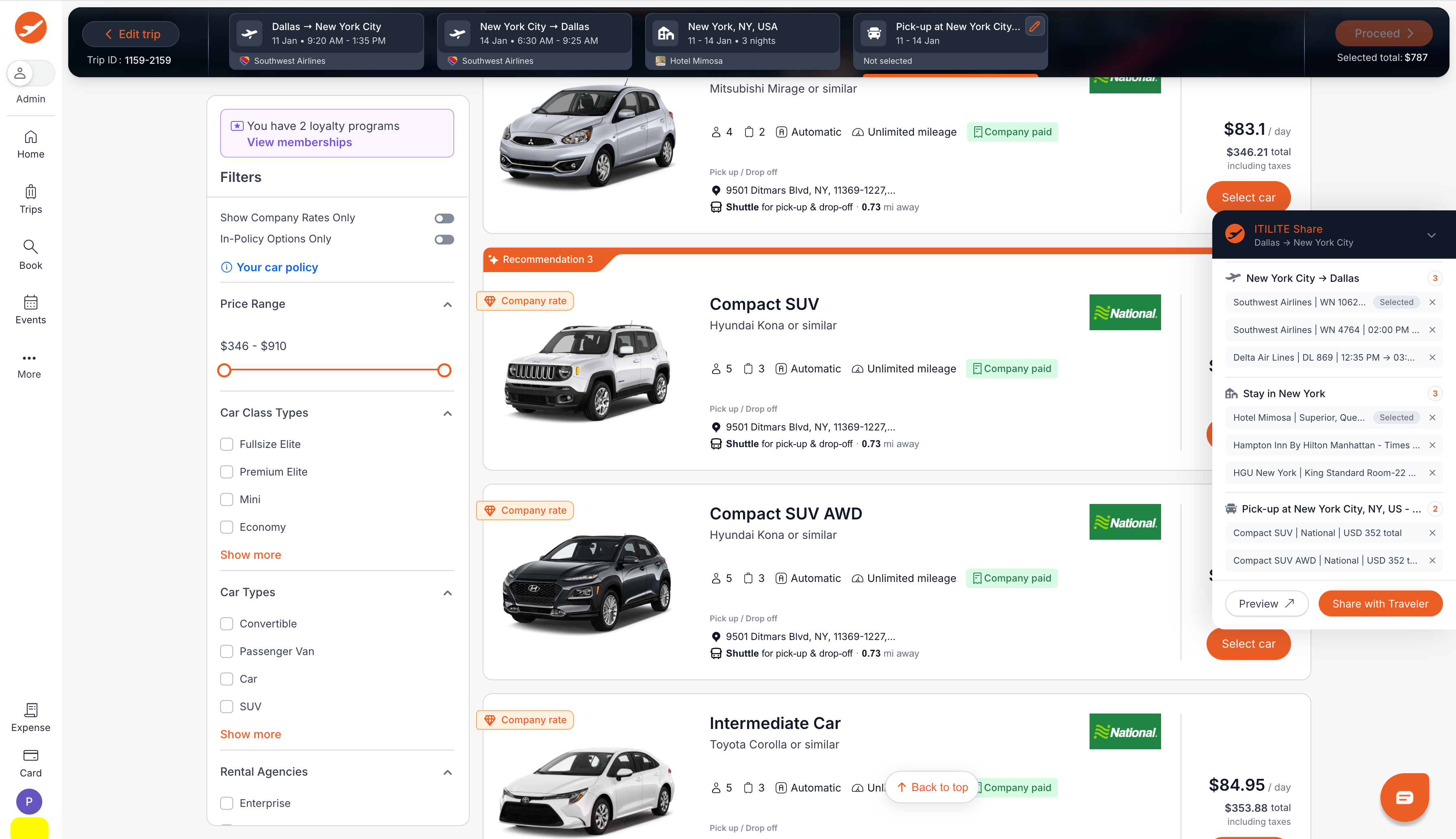
- The option is marked Added, and the SHARE tab on the right edge of the page shows how many options you have added so far.
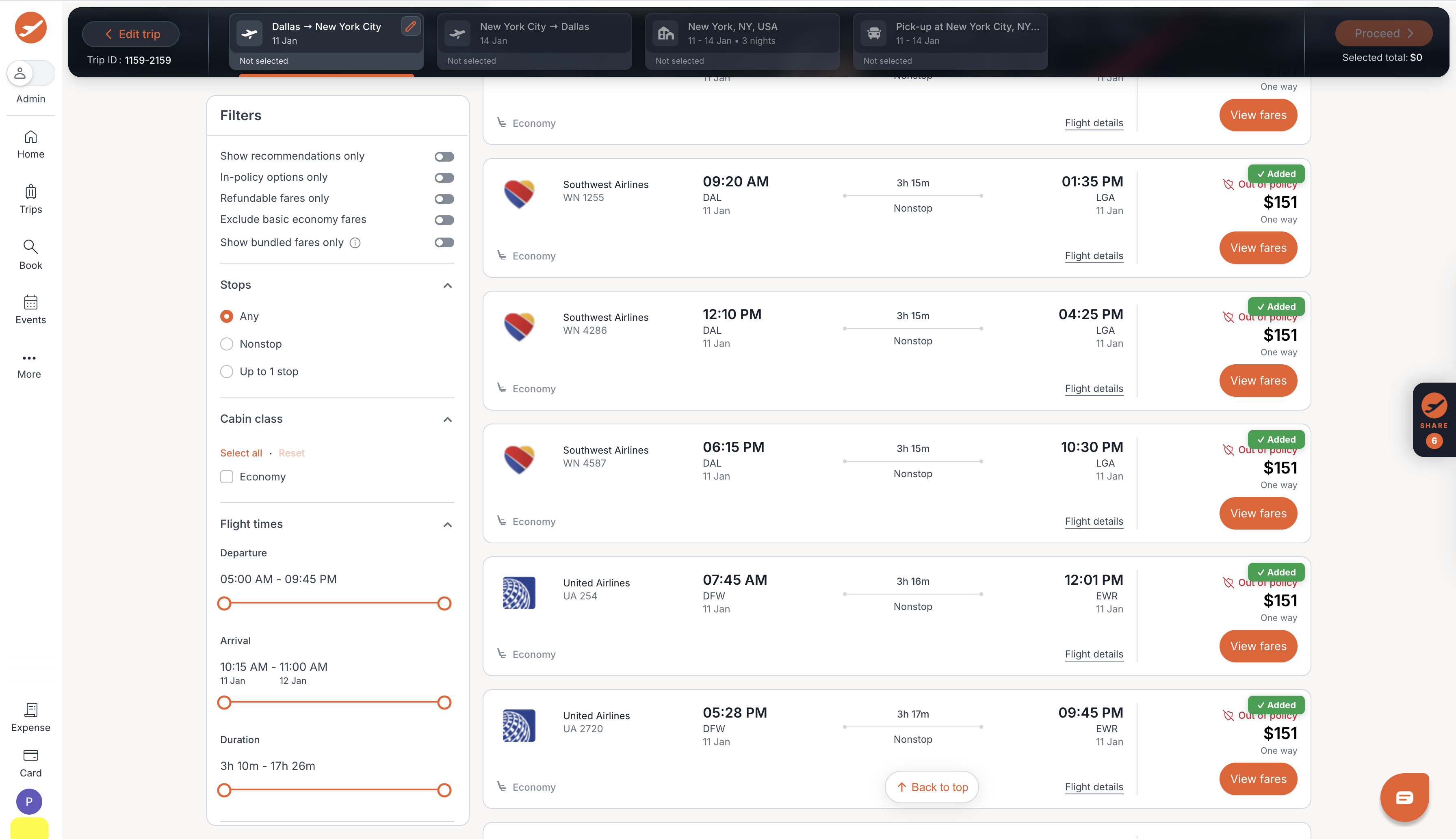
- Repeat for the other options you want to share. Keep these points in mind:
- You can add up to 6 options per booking. If you try to add more, you will see the message "You can add up to 6 options per booking."
- For flights, the lowest available fare of the flight, as shown on the card upfront, is shared.
- Hotels and car rentals are added exactly the same way as flights: hover over the option and click Share.
- All the options that you have added stay in the widget as you move between bookings.
- Click the SHARE floating widget on the right to review what you have added. Options are grouped by different bookings and travel modes in your trip. From here you can:
- Click the X next to an option to remove it.
- Click Preview to open the page your traveler will see.
- Click Share with Traveler to send the options (see Part 3).
Part 3: Send the options to your traveler
- In the ITILITE Share panel, click Share with Traveler.
- In the Share with Traveler window, fill in:
- Traveler email(s): enter one or more email addresses, separated by commas. This field is required.
- Your email (you'll be CC'd): this is filled in for you. You will be copied on the email.
- Note to traveler (optional): add any context, for example a deadline for replying.
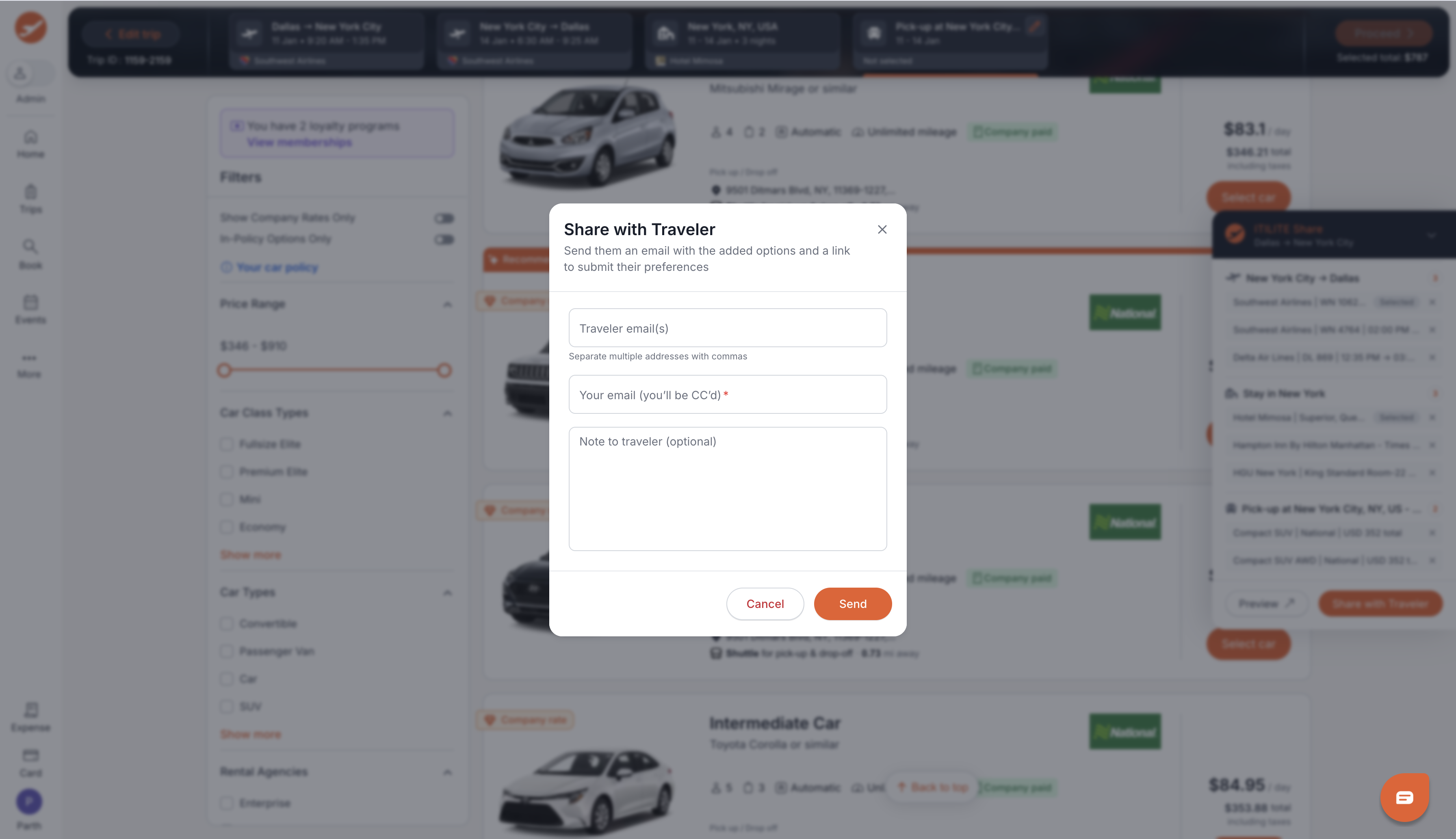
- Click Send. A message confirms that the email was sent.
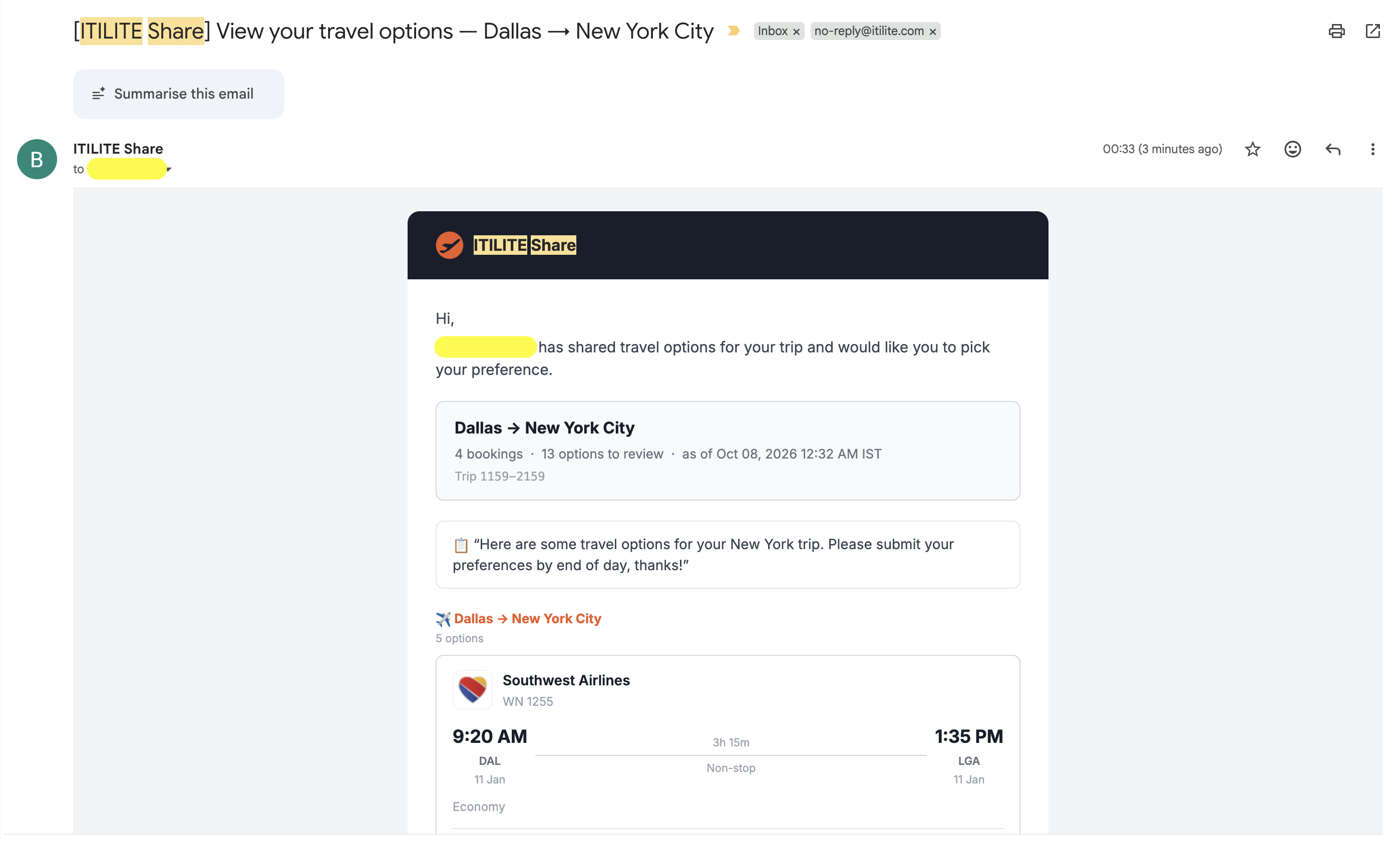
- Your traveler receives an email with the subject [ITILITE Share] View your travel options, followed by the trip route. The email shows your note, the number of bookings and options to review, the options grouped by booking, and the date and time the prices and availability are as of. If you shared with more than one traveler, everyone receives the same email and the same link.
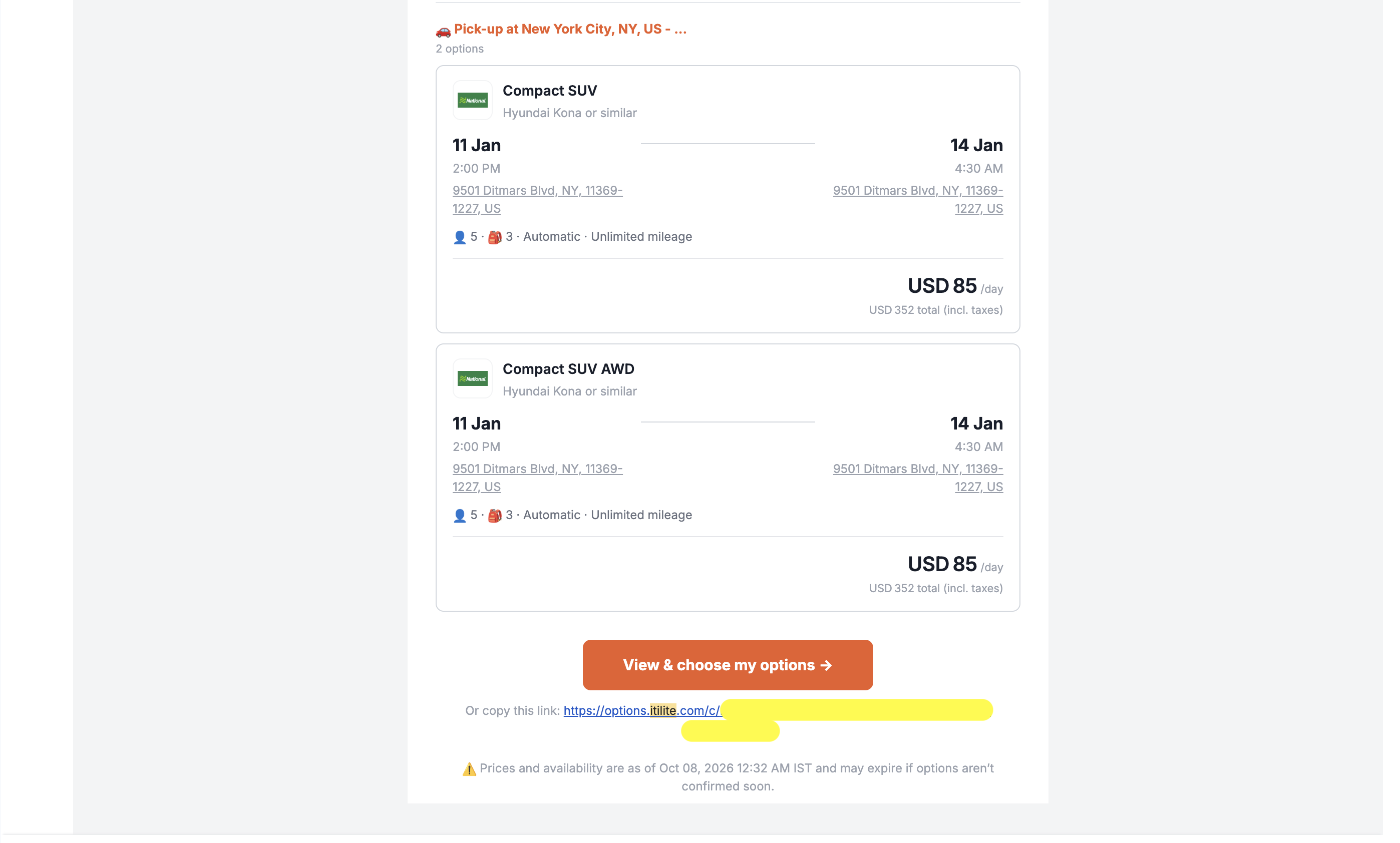
- The email has a View & choose my options button. It also includes the link in plain text, in case the button does not work in your traveler's email app.
Part 4: What your traveler sees
Here is what happens on your traveler's side after you send the options.
- Your traveler clicks View & choose my options in the email. The page opens right away. There is no login and no ITILITE account is needed, so it works for colleagues and for guests outside your company.
- The page shows your note, a reminder of the date and time the prices and availability are as of, and every option you shared, grouped by booking. A tab for each booking sits at the top of the page and shows Not selected until your traveler picks an option.
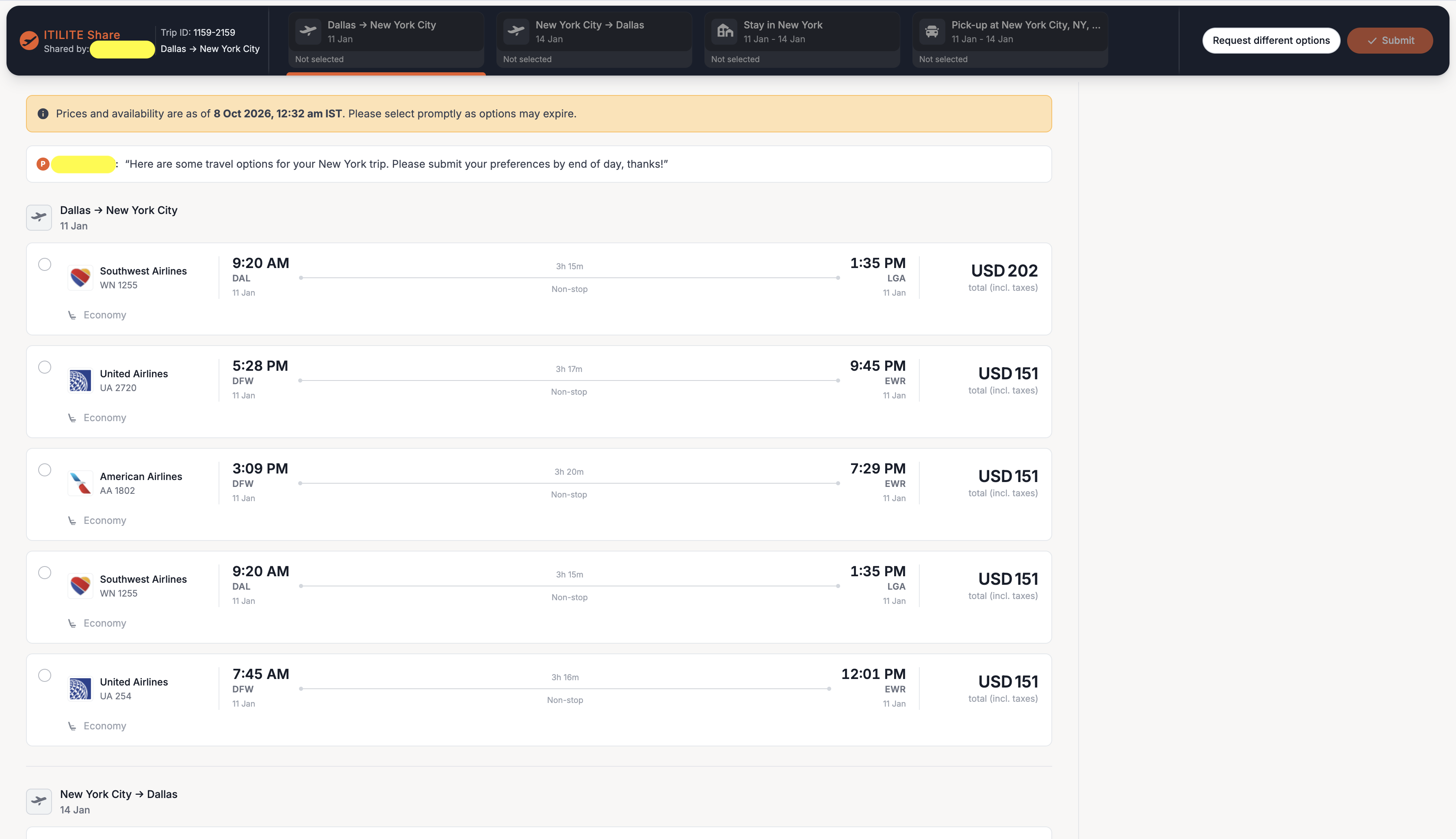
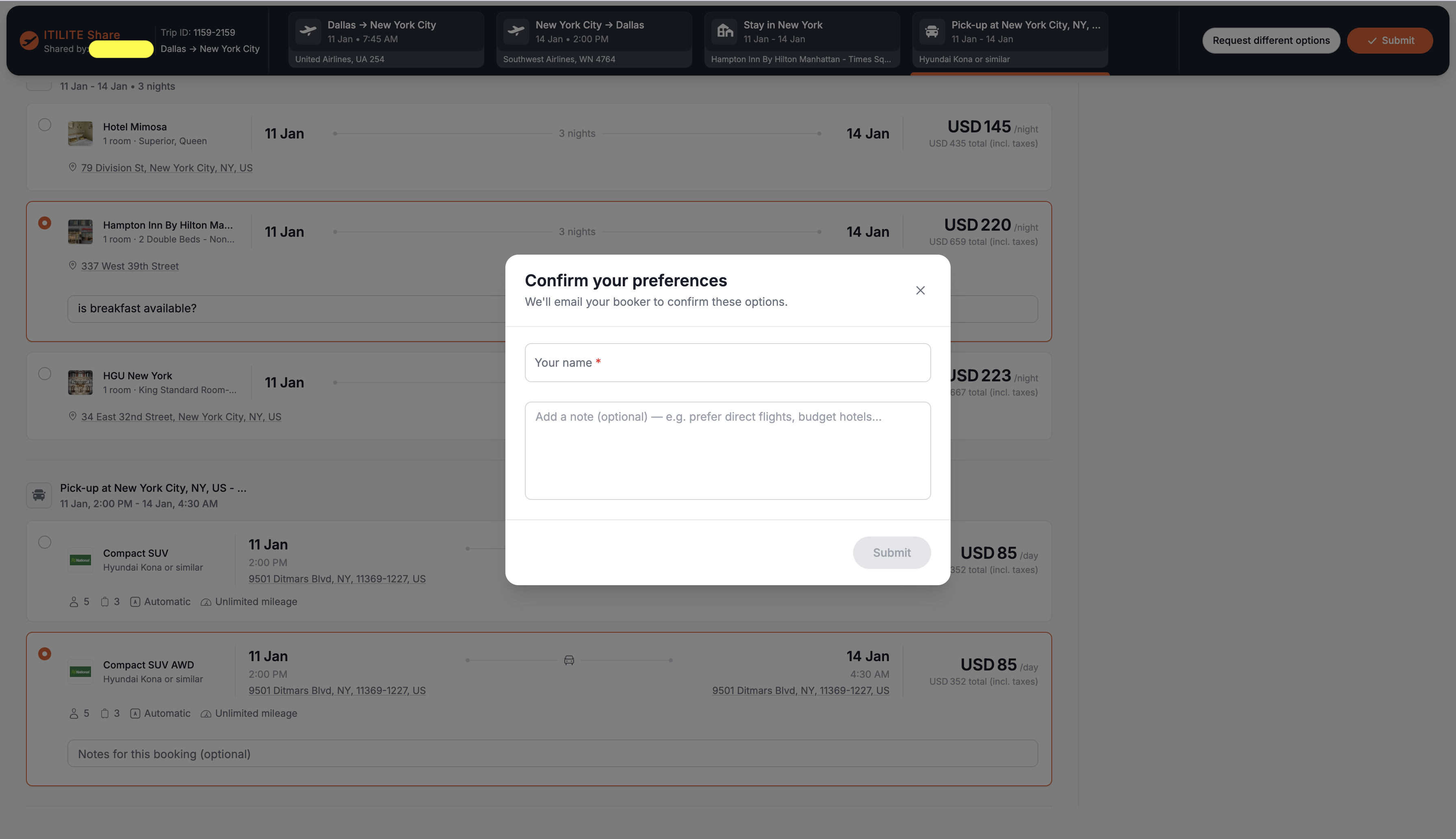
- Your traveler selects one option for each booking. If they would like, they can add a note under the option they picked, for example a seat preference or a question about the hotel.
- Once an option is selected for every booking, the Submit button becomes available. Your traveler clicks Submit, enters their name (required) and an optional overall note in the Confirm your preferences window.
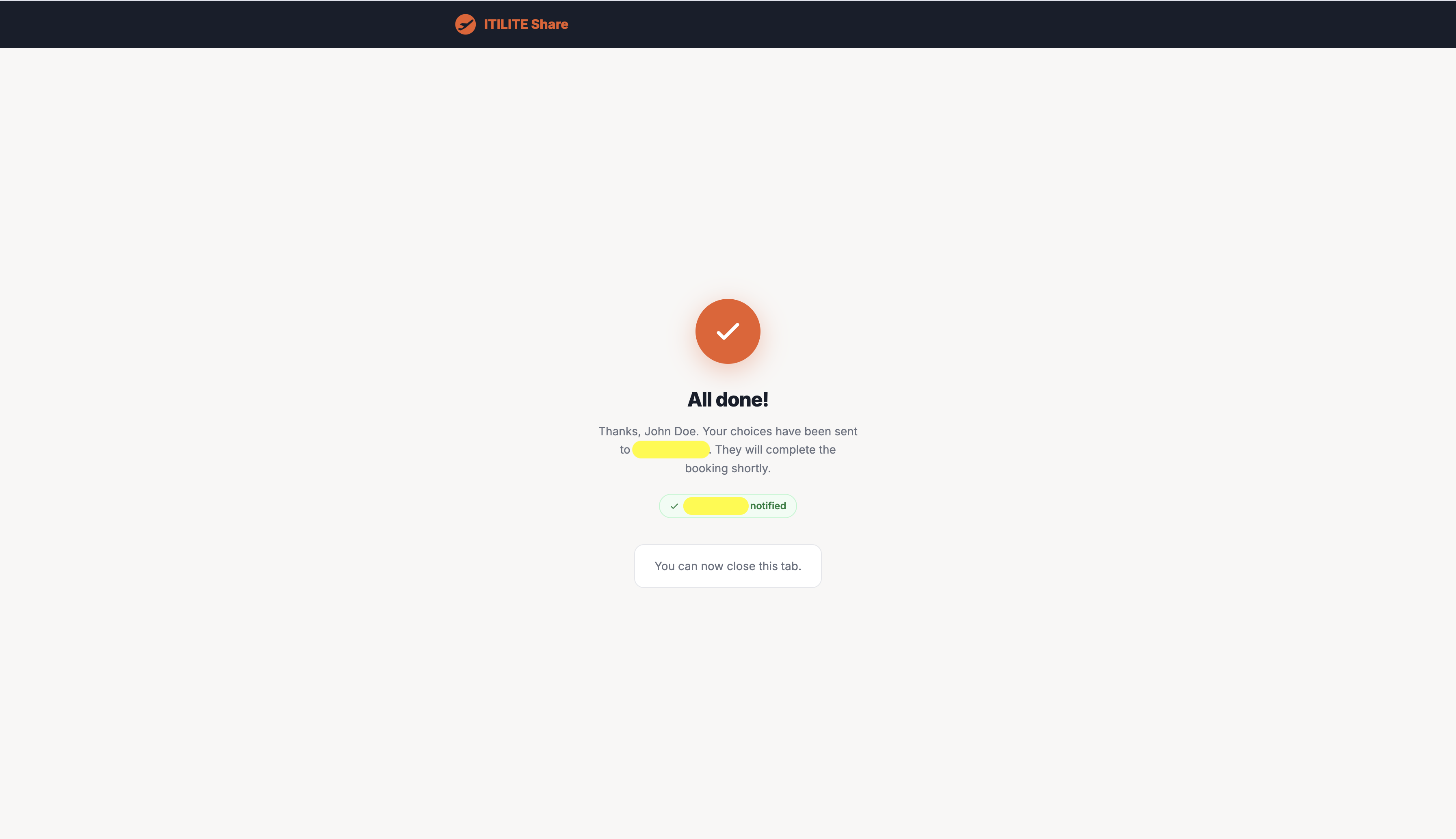
- A confirmation page tells your traveler that you have been notified.
If none of the options work, your traveler can click Request different options instead. They enter their name (required) and an optional note describing what they are looking for. The link stays active, so they can still choose from the options once you have shared new ones.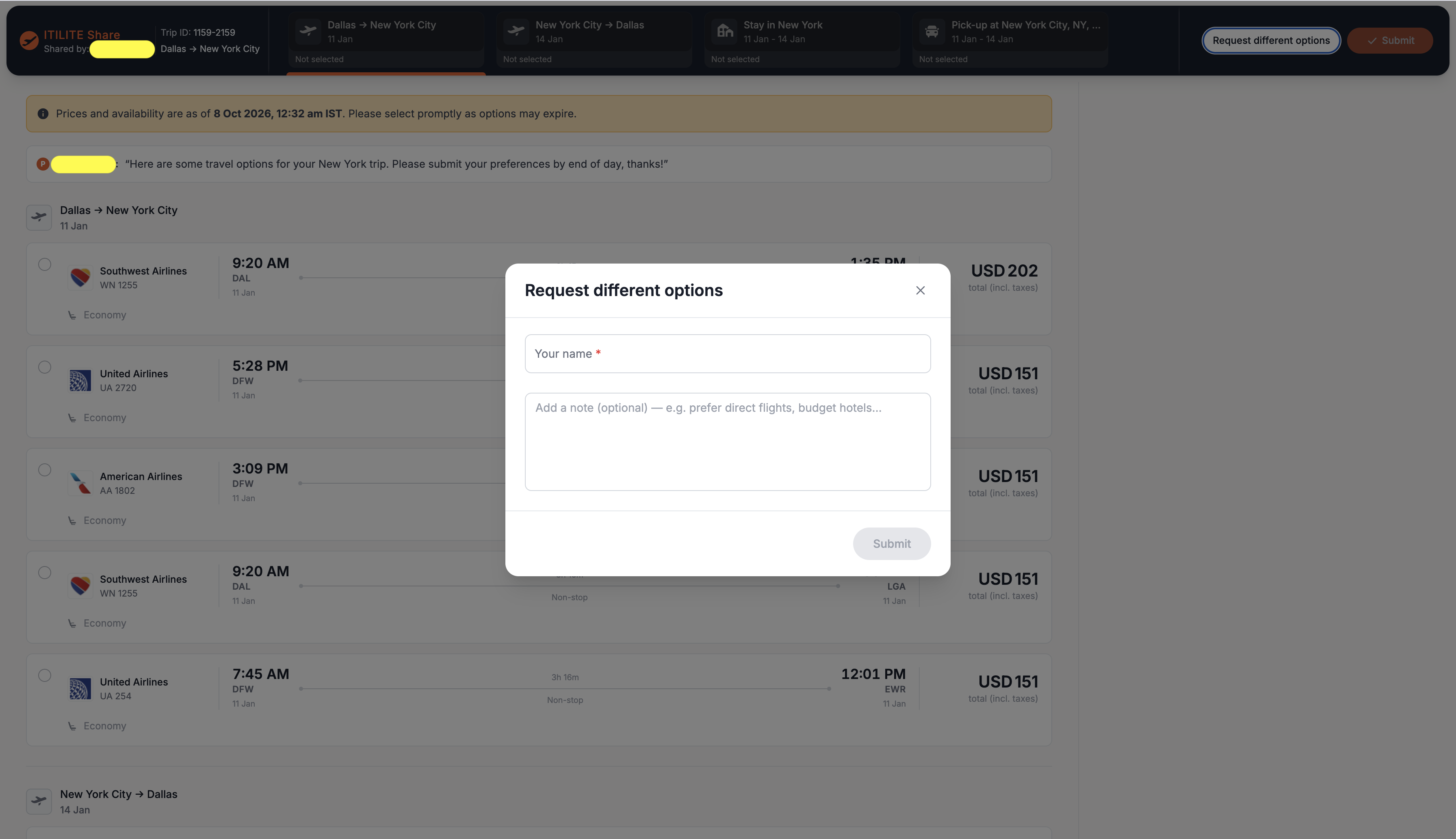
Part 5: Review the response and complete the booking
- When your traveler responds, you receive an email from ITILITE Share. You are in the To line and your traveler is copied. You get one email for every submission.
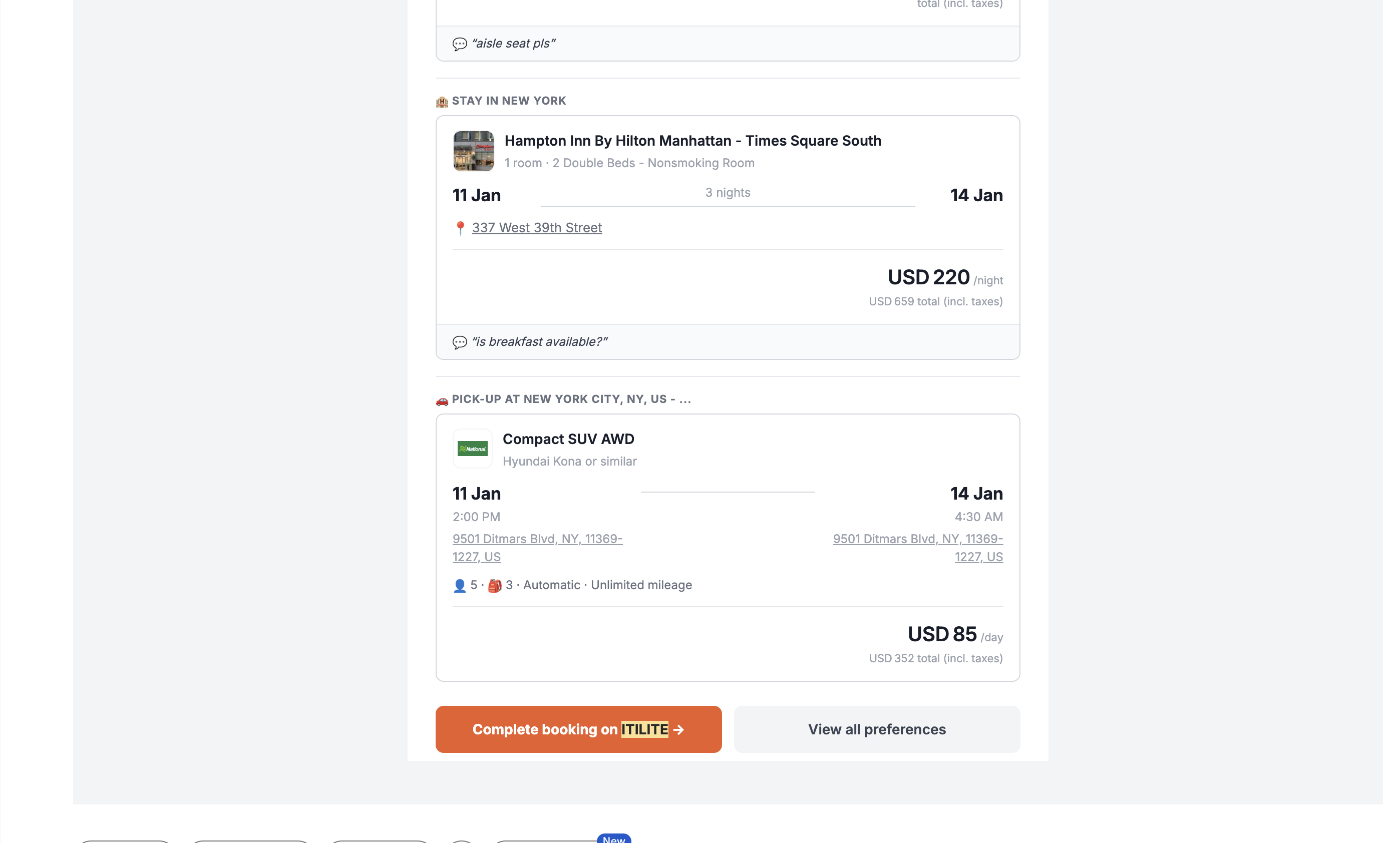
- If your traveler chose their options, the subject is "[ITILITE Share] {Traveler name} submitted travel preferences...". The email shows the traveler's overall note and the option they picked for each booking, along with any note they added to an option.
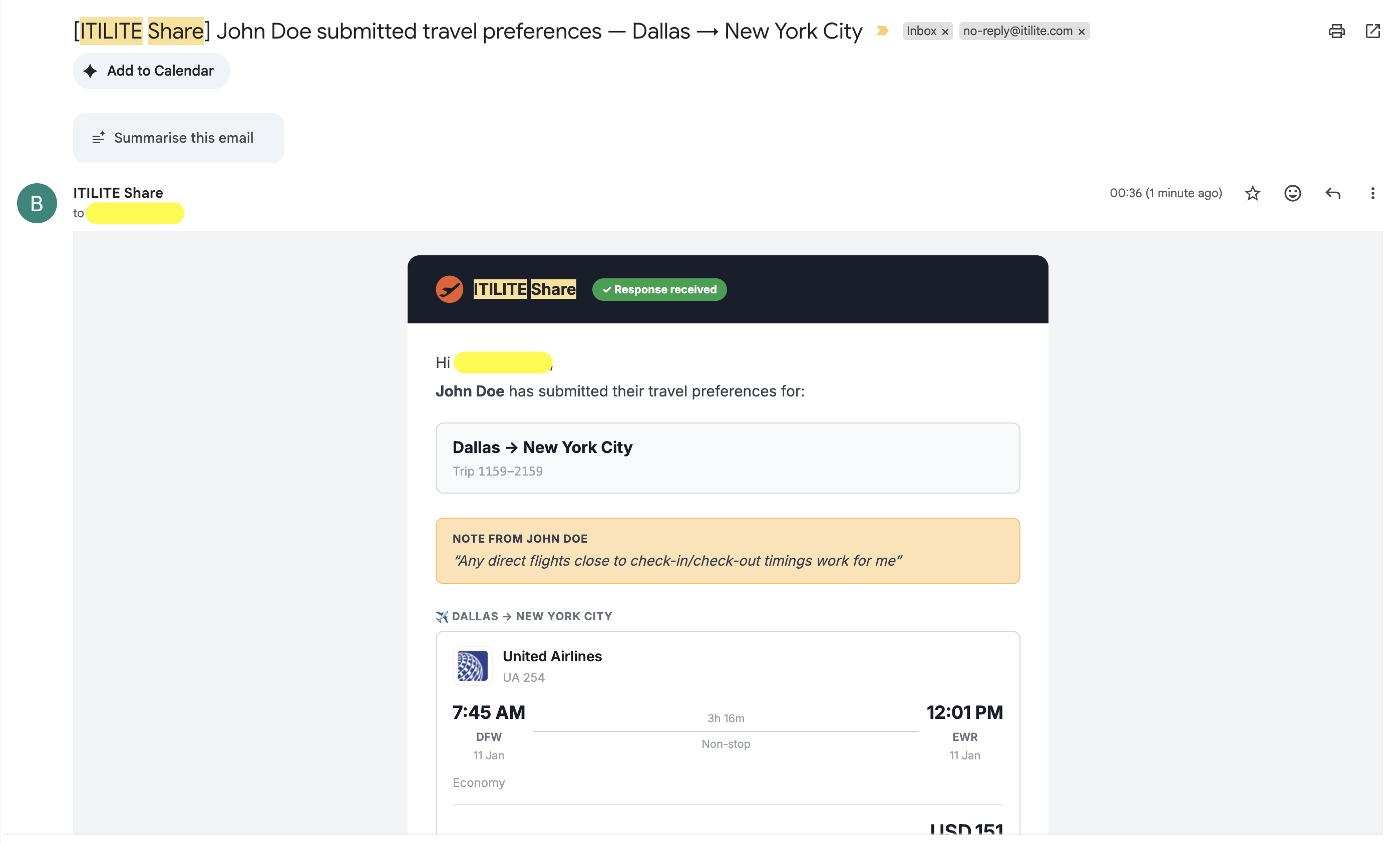
- Click Complete booking on ITILITE. This opens the results page for the trip on ITILITE.
Note: The options your traveler picked are not selected for you. The results page always shows the latest fares and availability, so find each chosen flight, hotel or car in the results, select it, and click Proceed to complete the booking as you normally would.
- To see everything you shared and every response received so far, click View all preferences. This opens a page with all shared options and any previous submissions.
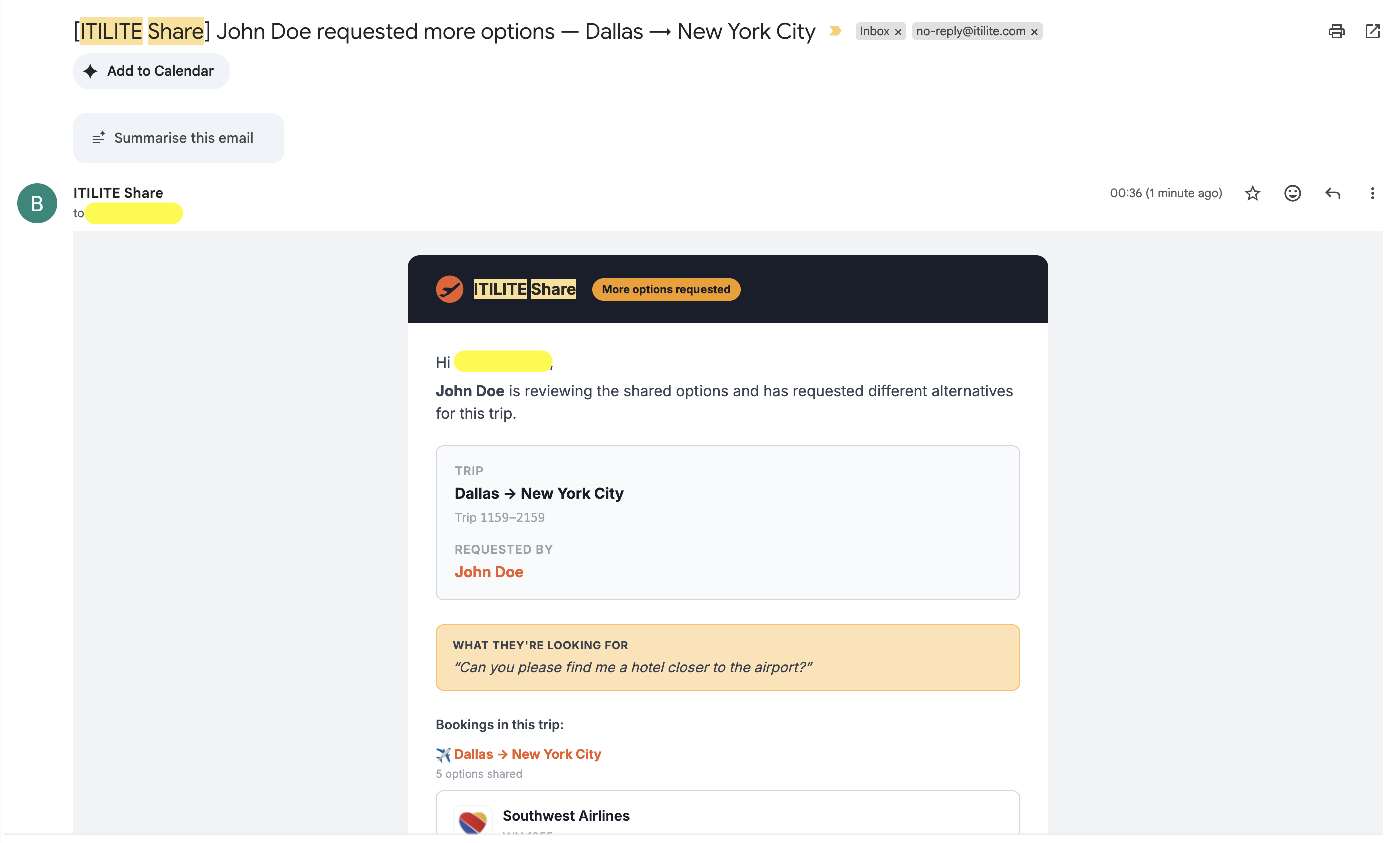
- If your traveler asked for different options, the subject is "[ITILITE Share] {Traveler name} requested more options...". Click Add more options on ITILITE to go back to the trip's results page, add or remove options, and click Share with Traveler again. Your traveler gets a new email, and the same link now shows the latest options.
Pro-Tips & Guardrails
PRO-TIP: Prices and availability are as of the date and time the options were shared, shown in the time zone of the person who shared them. Ask your traveler to reply promptly. If an option is no longer available when you go to book, you can share new options or book the next best option based on the preferences your traveler submitted. ITILITE Share does not replace options for you.
GUARDRAIL: The link in the email does not require a login and does not expire. Anyone who has it can open the page and submit preferences. Share it only with the people you intend to.
GUARDRAIL: Your traveler's choices are a preference, not a booking. Nothing is booked until you complete the booking on ITILITE.
Verification & FAQs
After you click Send, check that you see a confirmation message and that you have received a copy of the email, since you are copied on it. When your traveler responds, an email from ITILITE Share arrives in your inbox. Click View all preferences in it to see all shared options and responses in one place.
Q: Does my traveler need an ITILITE account?
A: No. The page opens from the link in the email, with no login. It works for colleagues and for guests outside your company.
Q: Which browsers does ITILITE Share work on?
A: Google Chrome and other Chromium-based desktop browsers, such as Arc and Brave. It does not work on Safari or Firefox.
Q: Can I share hotels and car rentals, or only flights?
A: You can share flights, hotels and car rentals. Hotels and cars are added the same way as flights: hover over the option and click Share. For flights and hotels, the lowest available fare is shared.
Q: How many options can I share?
A: Up to 6 options per booking.
Q: Can I share the same options with more than one traveler?
A: Yes. Enter several email addresses separated by commas in the Traveler email(s) field. Everyone receives the same email and link. You receive a separate email for each person's response.
Q: Will my traveler's choice be booked automatically?
A: No. The email tells you what your traveler prefers. You then complete the booking on ITILITE, where you need to find and select the chosen options again, because the results page shows the latest fares and availability.
Q: What if the price or availability has changed by the time I book?
A: The prices in the email are as of the time you shared the options. If something has changed or is no longer available, you can share new options with your traveler, or book the next best option based on their preferences.
Q: Can my traveler submit more than once?
A: Yes. Each submission is added to the earlier ones and nothing is replaced. View all preferences shows every submission.
Q: Can I change the options after I have shared them?
A: Yes. Go back to the trip's results page, add or remove options in the ITILITE Share panel, and click Share with Traveler again. Your traveler receives a new email, and the same link shows the latest options.
Q: What does my traveler do if none of the options work?
A: They click Request different options, add an optional note about what they would like instead. You receive an email with their request and can then add more options and share again.
Q: Where can I see what I shared and what my traveler chose?
A: Click View all preferences in any response email. The page shows all shared options and every submission so far.
Q: Does the link expire?
A: The link itself does not expire, but the prices and availability shown are as of the time you shared the options and may no longer be valid later.
Was this article helpful?
That’s Great!
Thank you for your feedback
Sorry! We couldn't be helpful
Thank you for your feedback
Feedback sent
We appreciate your effort and will try to fix the article